New features and improvements for speakers, organizers and sponsors, newest first.
Your own schedule, badges and booth scanning
Attendees plan their day from their ticket, organizers print badges and count people into sessions, sponsors scan badges at their booth, and every event gets an analytics dashboard.
Organizers
Print name badges
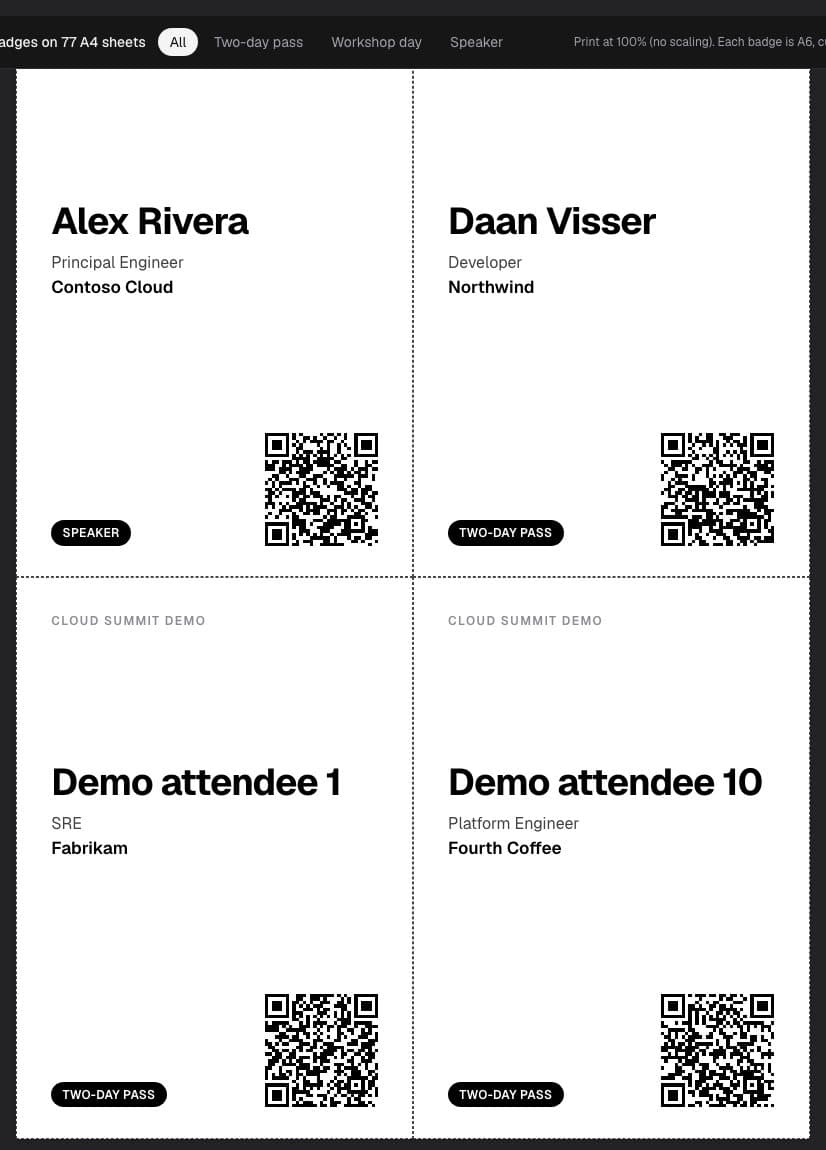
Print A6 name badges, four to an A4 sheet, with each person's name, company and a QR code. The badge code can't open or cancel the ticket, so it's safe to wear all day. Volunteers can print a single badge for a walk-in.
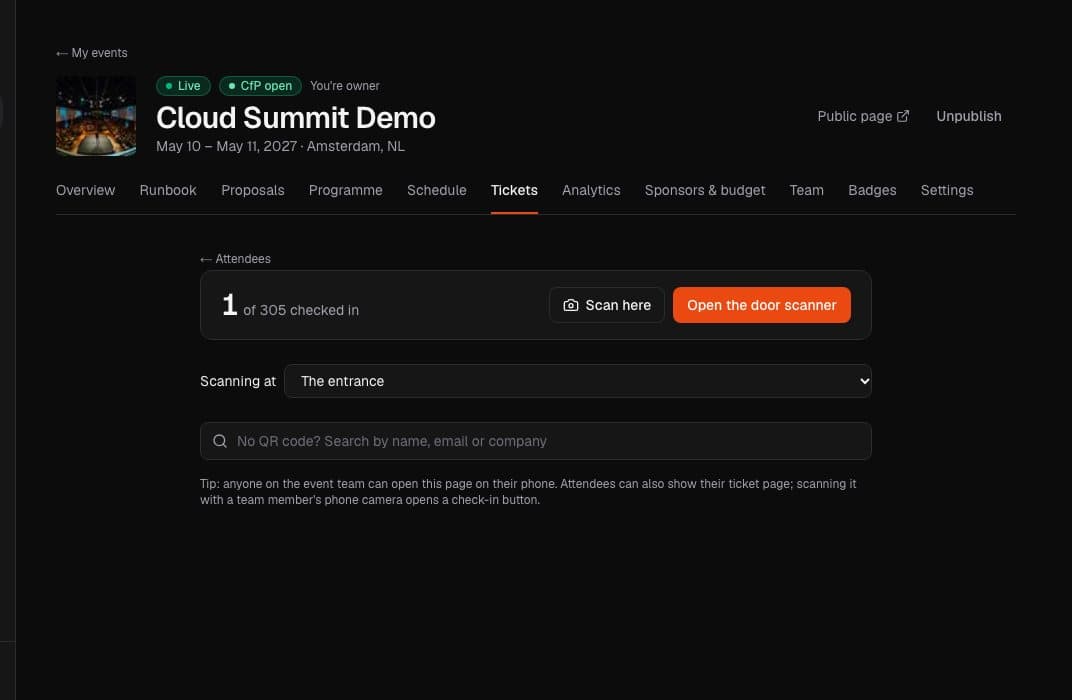
Pick a session in the door scanner and scan badges at the room door. Analytics then shows how many people came to each session against how many planned to.
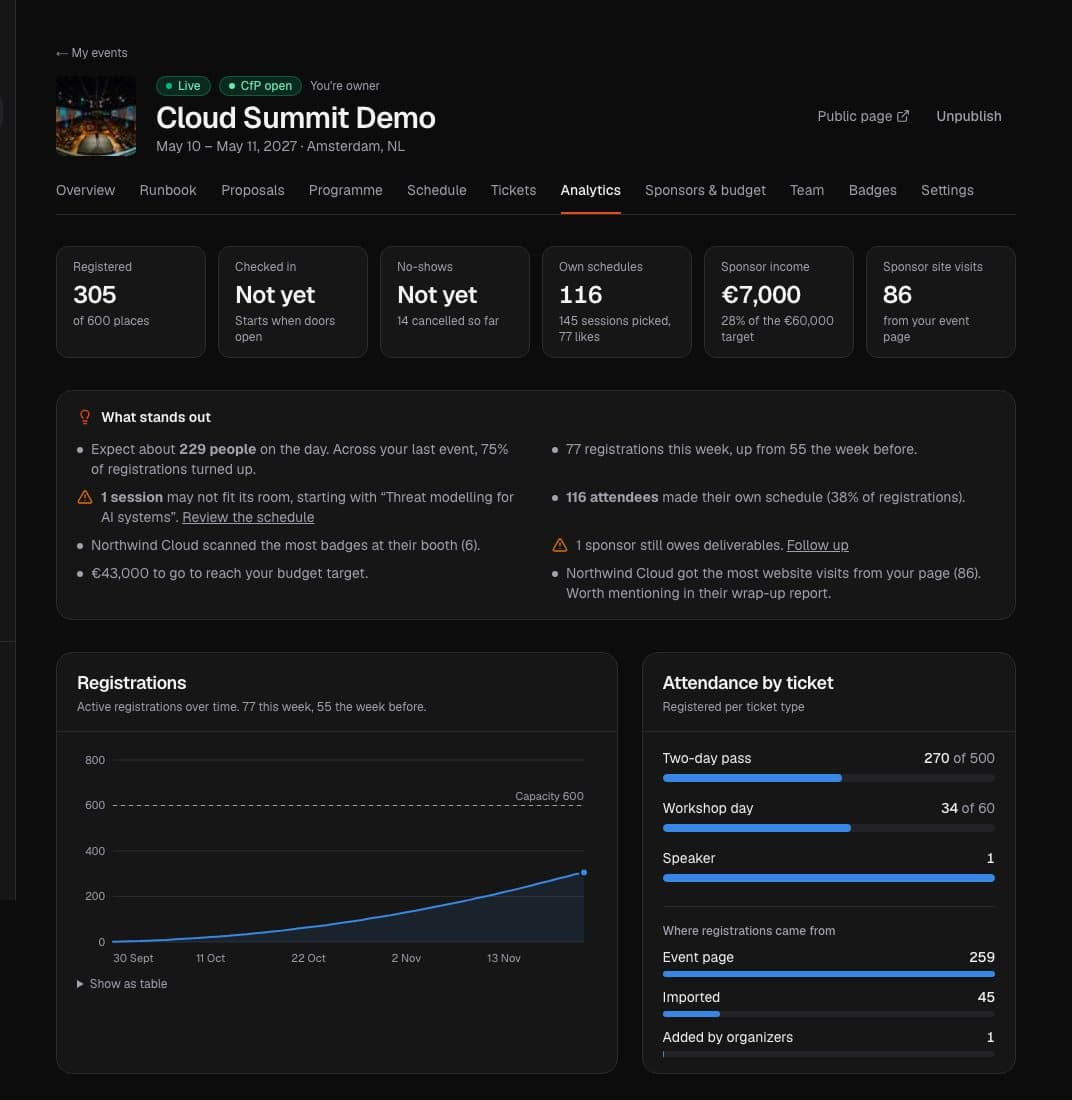
See registrations over time, who checked in and who didn't show up, which sessions people plan to attend, and sponsor value, booth visits and website visits on one page. It also points out what needs attention, like a session that may not fit its room, and predicts turnout from your earlier events.
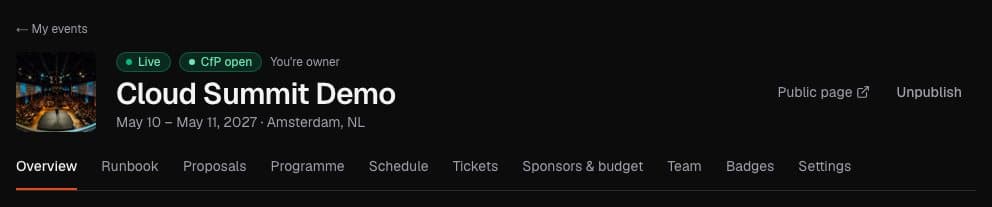
A Publish event button at the top of your event shows whether the page is a draft or live. Publish to put the event page online, even before the CfP or registration opens. Unpublish takes it offline again. The share kit links for your speakers and sponsors are on the overview.
Sponsors
Scan badges at your booth
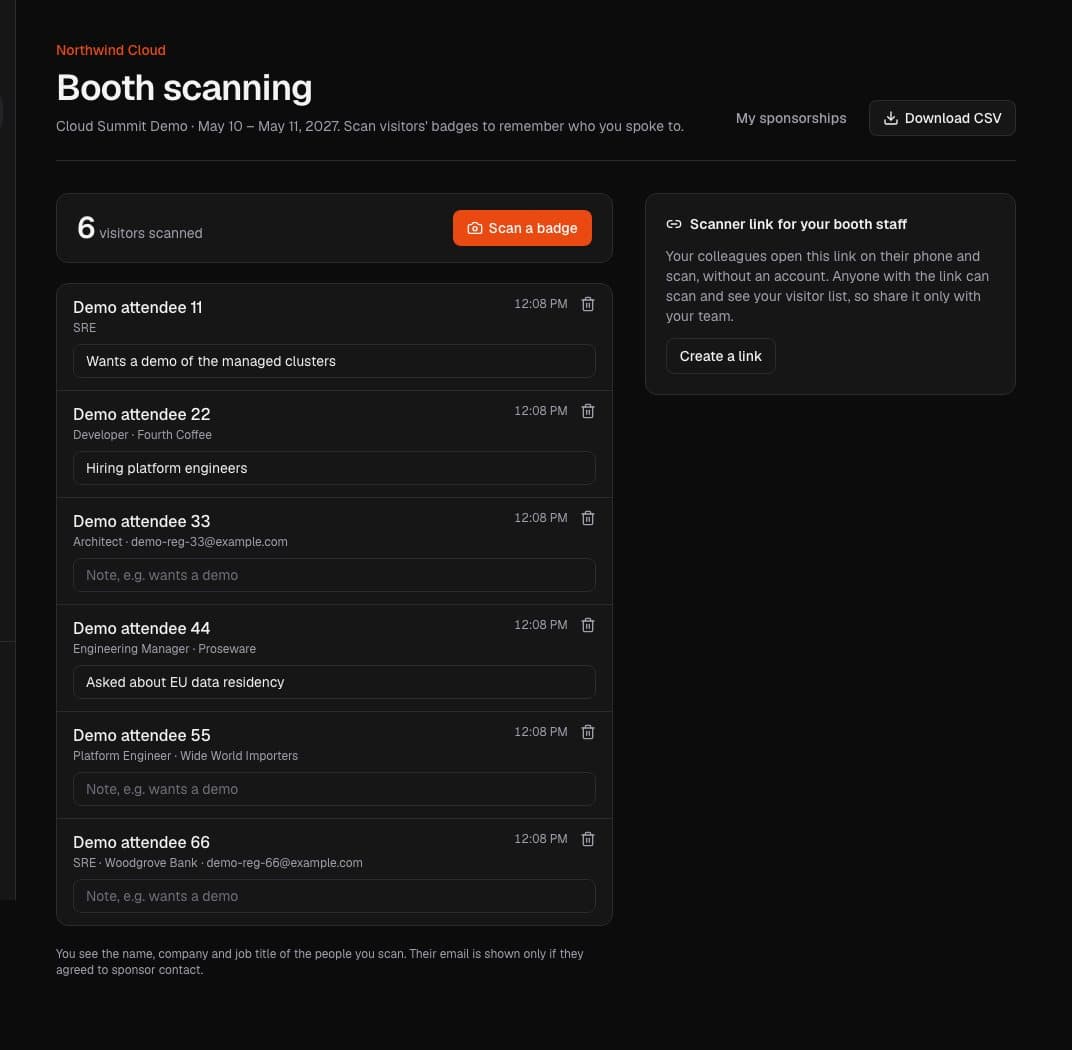
If your package includes badge scanning, scan visitors at your booth, add a note and download the list. Share a private scanner link with your booth staff, no accounts needed. You see name, company and job title, and the email only when the visitor allowed sponsor contact.
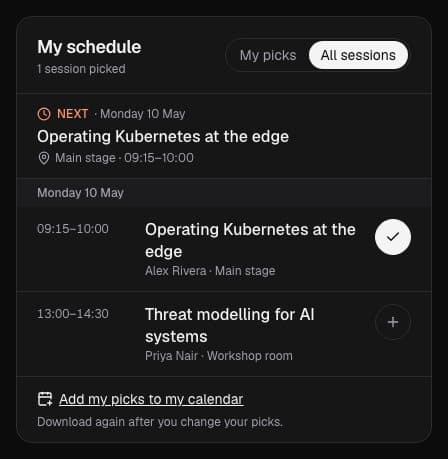
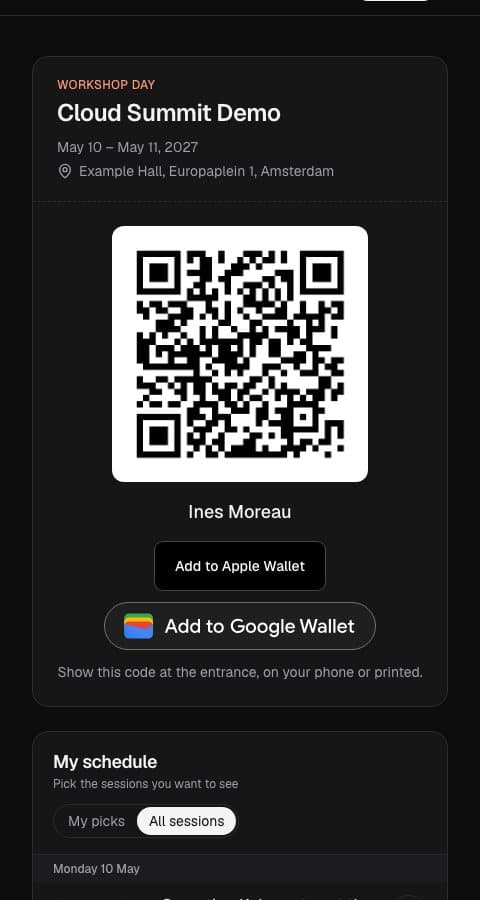
Open your ticket link to pick the sessions you want to see. It shows what's on now and next, warns you when two picks overlap, and puts your picks in your calendar. No account or app needed.
Official Apple Wallet and Google Wallet buttons
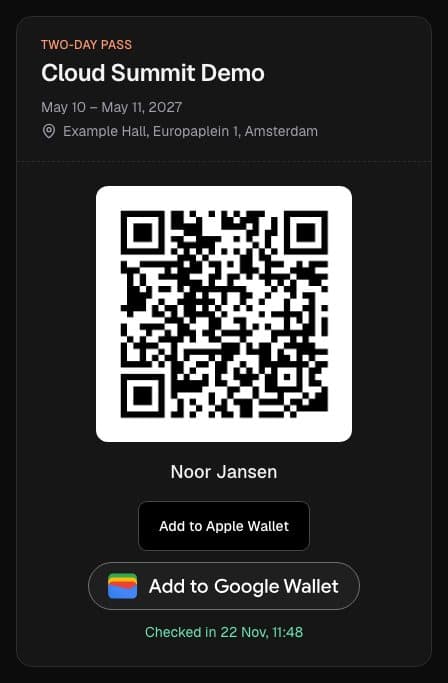
Tickets and ticket emails now use the official Add to Google Wallet button, so it's clear what you're tapping.
A cleaner event page with speakers
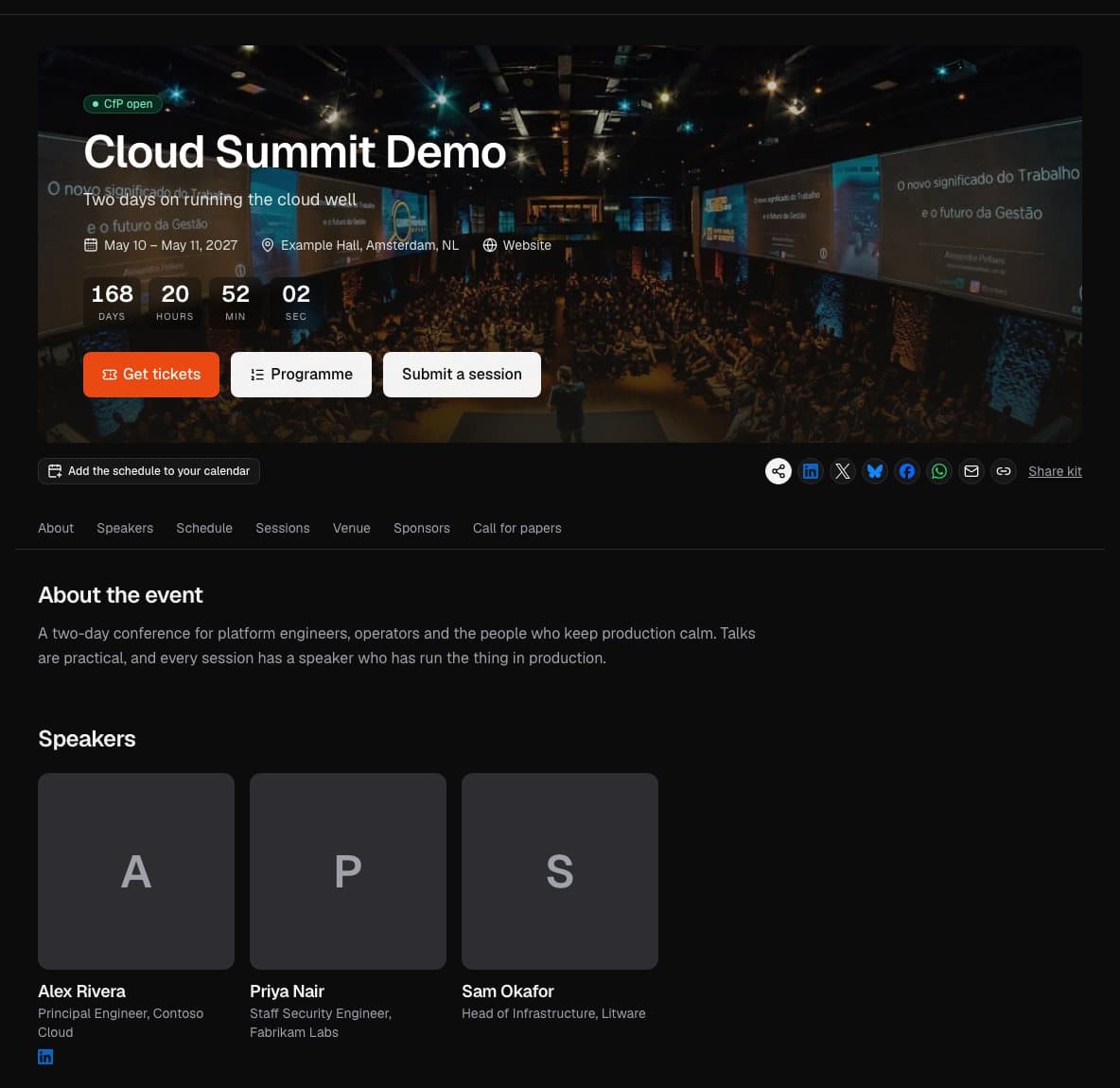
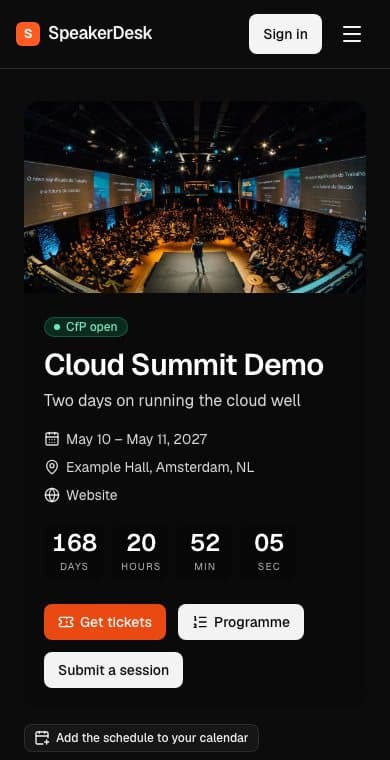
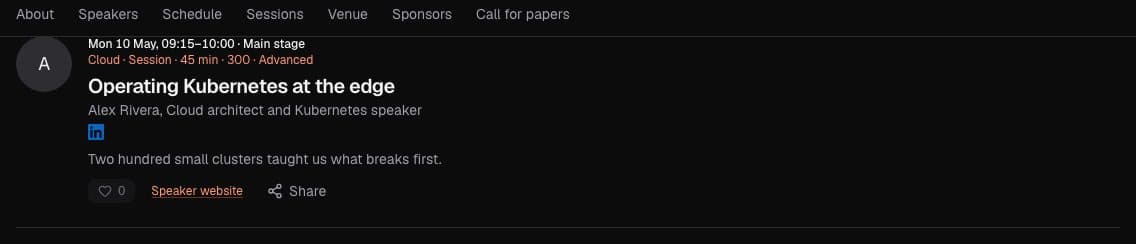
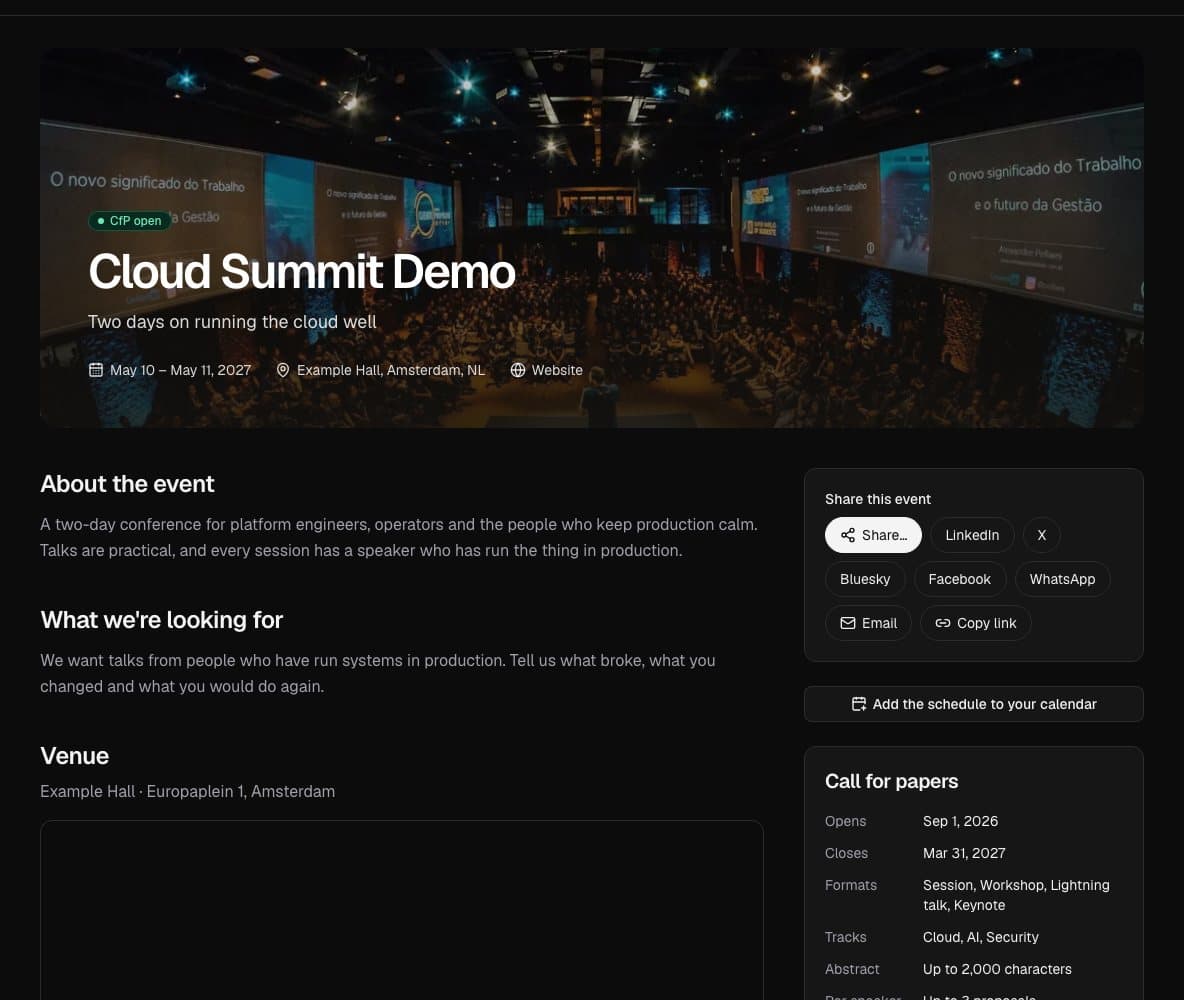
Event pages now have Get tickets and Programme buttons at the top, a bar to jump between sections, and a grid of every speaker with their photo, role and social links. The schedule sits right on the page, and tickets have their own page.
Event pages now count down the days, hours, minutes and seconds to the first session, and say "Happening now" while the event runs. On a phone the banner shows the whole photo, with the event name below it.
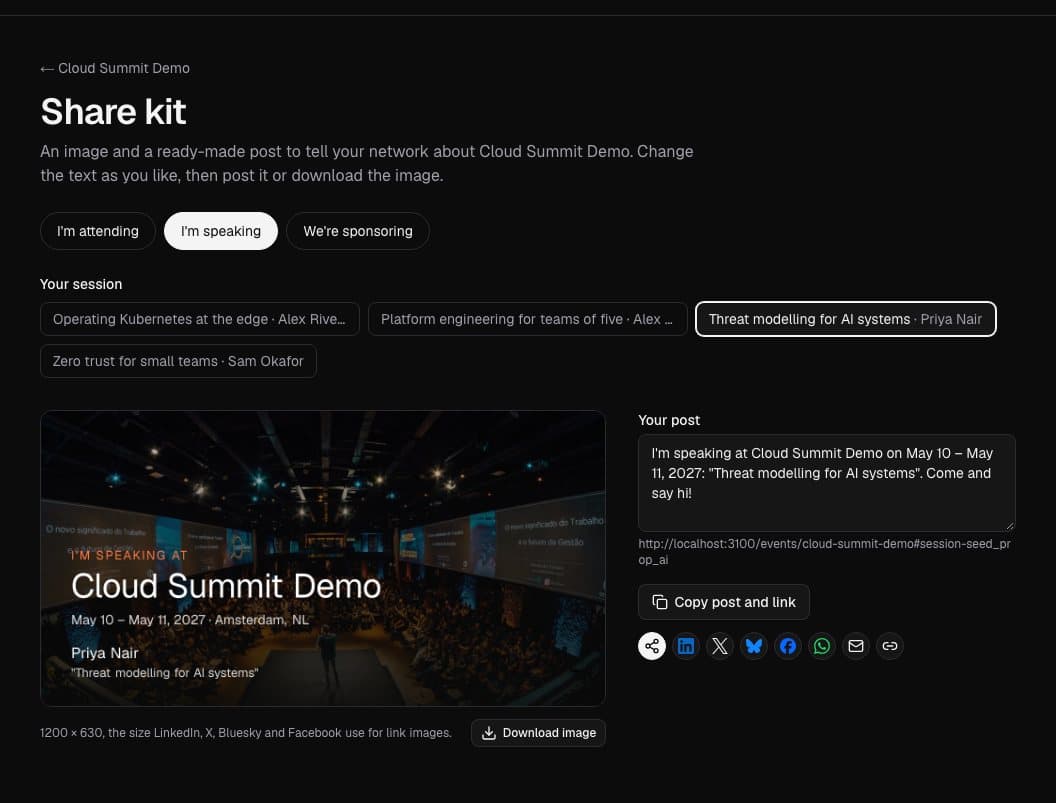
Every event page links to a share kit: a ready-made post you can edit, share buttons, and an image to download. Speakers pick their session and sponsors their company, so the image shows their name or logo.
Run registration for your event on SpeakerDesk, or bring the list from Meetup or run.events, and check people in at the door with their QR ticket.
Speakers
Speaker social media links on the programme
On every event page, speaker profiles now show their LinkedIn, GitHub, X, Bluesky, Mastodon, YouTube and other social links below their name so attendees can follow them.
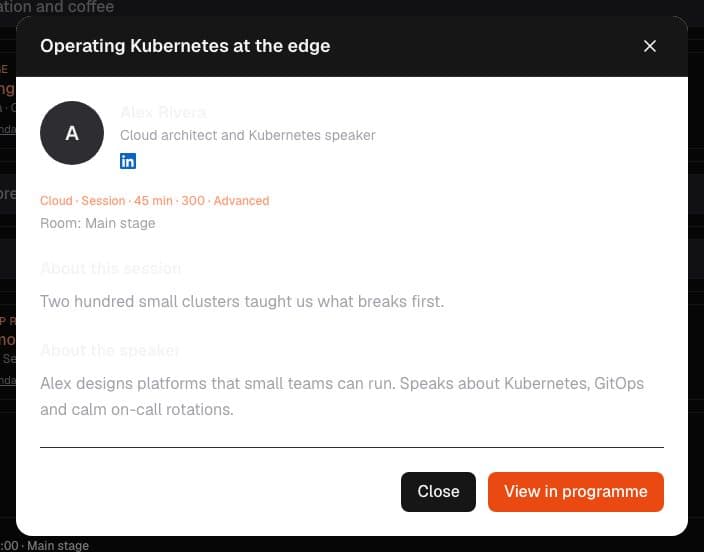
Click a session to see full details
Click any session in the schedule grid to open a modal with the full title, description, speaker bio, their social links and time slot all in one place.
Organizers
Event templates
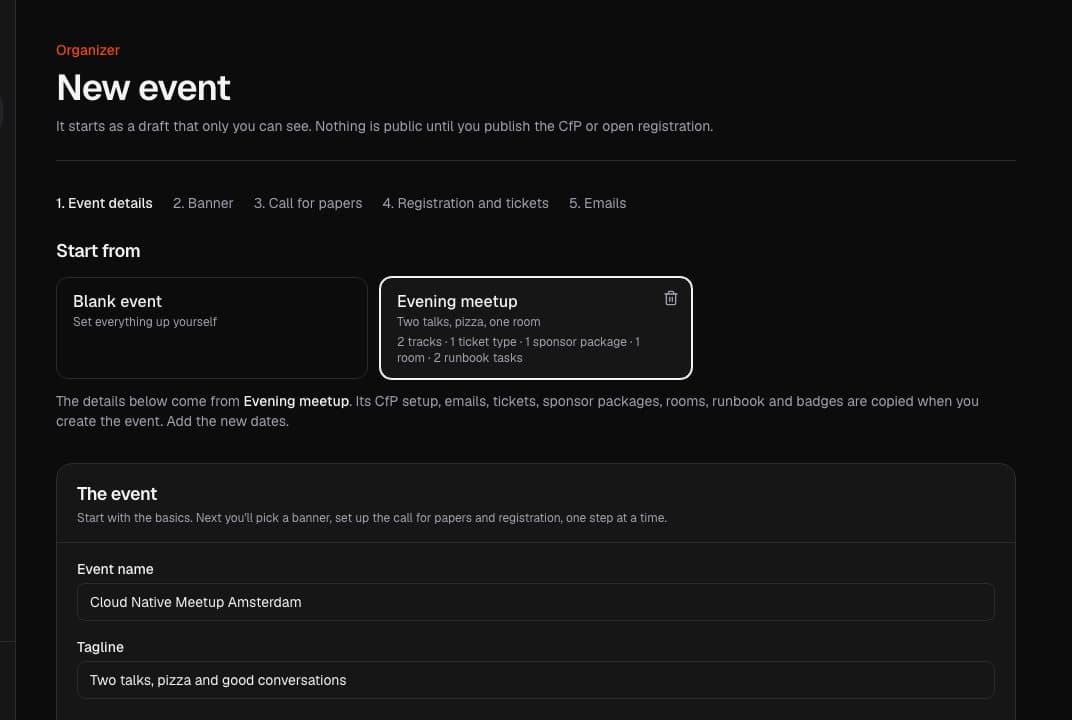
Save any event as a template from its settings, then pick it when you create your next one. The description, venue, CfP setup, emails, ticket types, sponsor packages, rooms and runbook come along. Dates, proposals and attendees stay behind, and runbook due dates follow the new start date.
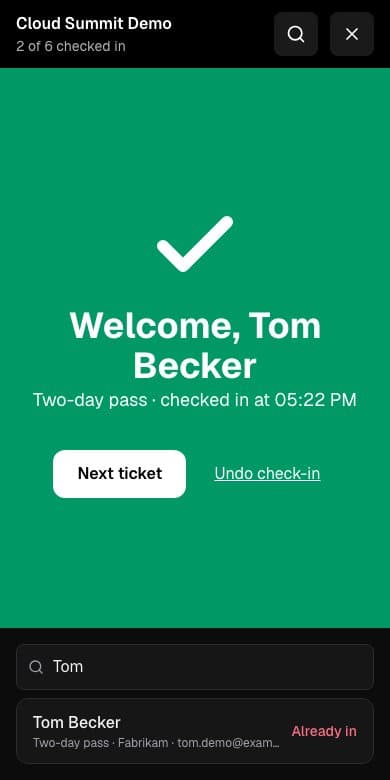
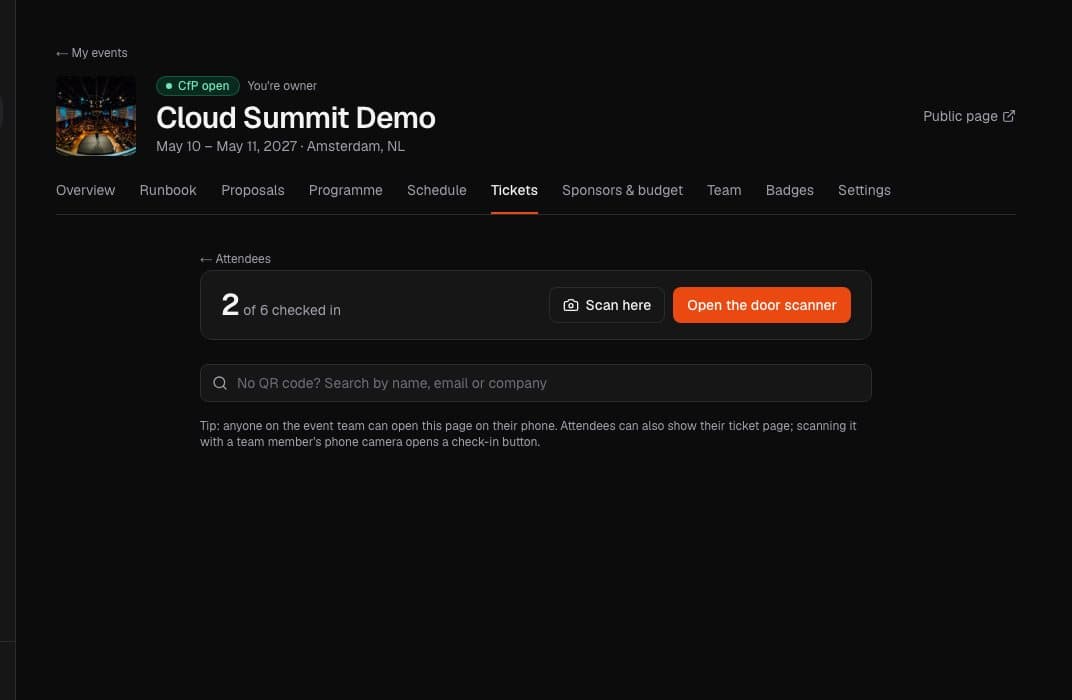
Door staff sign in at speakerdesk.eu/scan on any phone, pick the event and scan. The whole screen turns green when someone is checked in, and red when a ticket was already used, is cancelled or isn't for this event. No QR code? Search by name.
Guided event setup
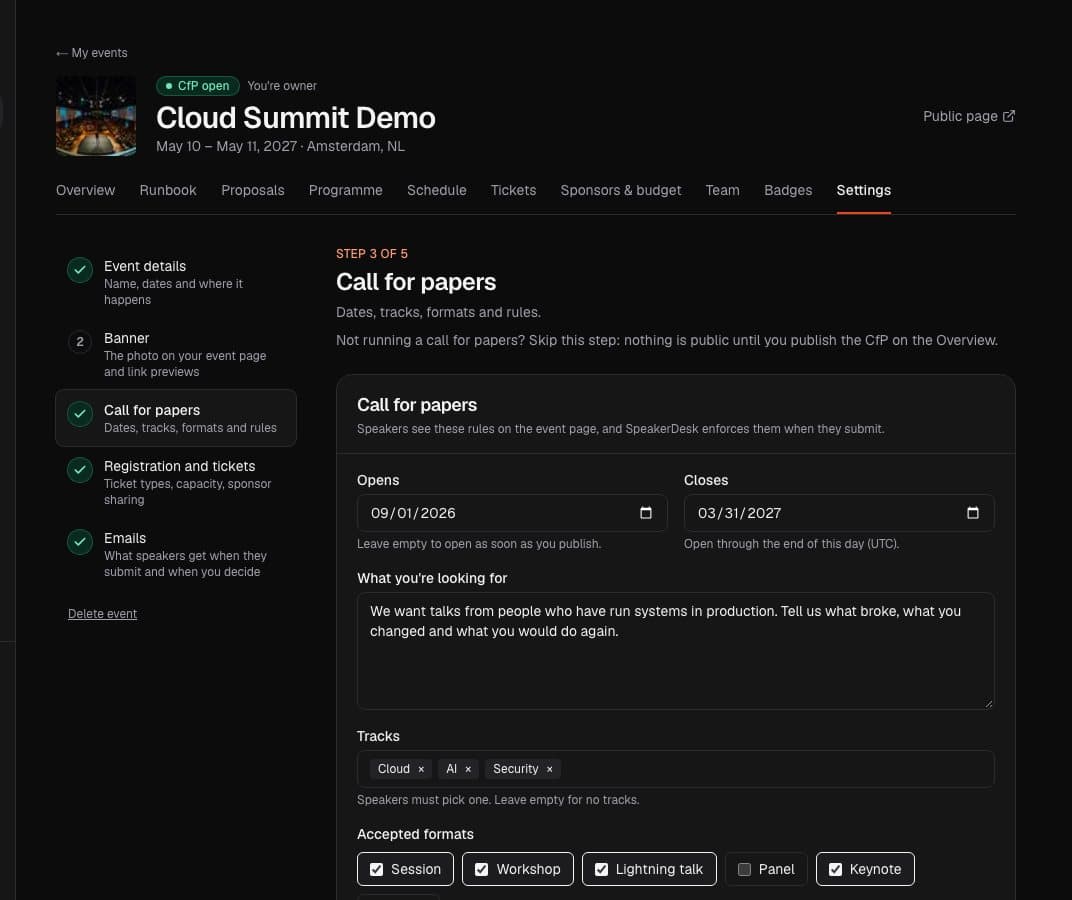
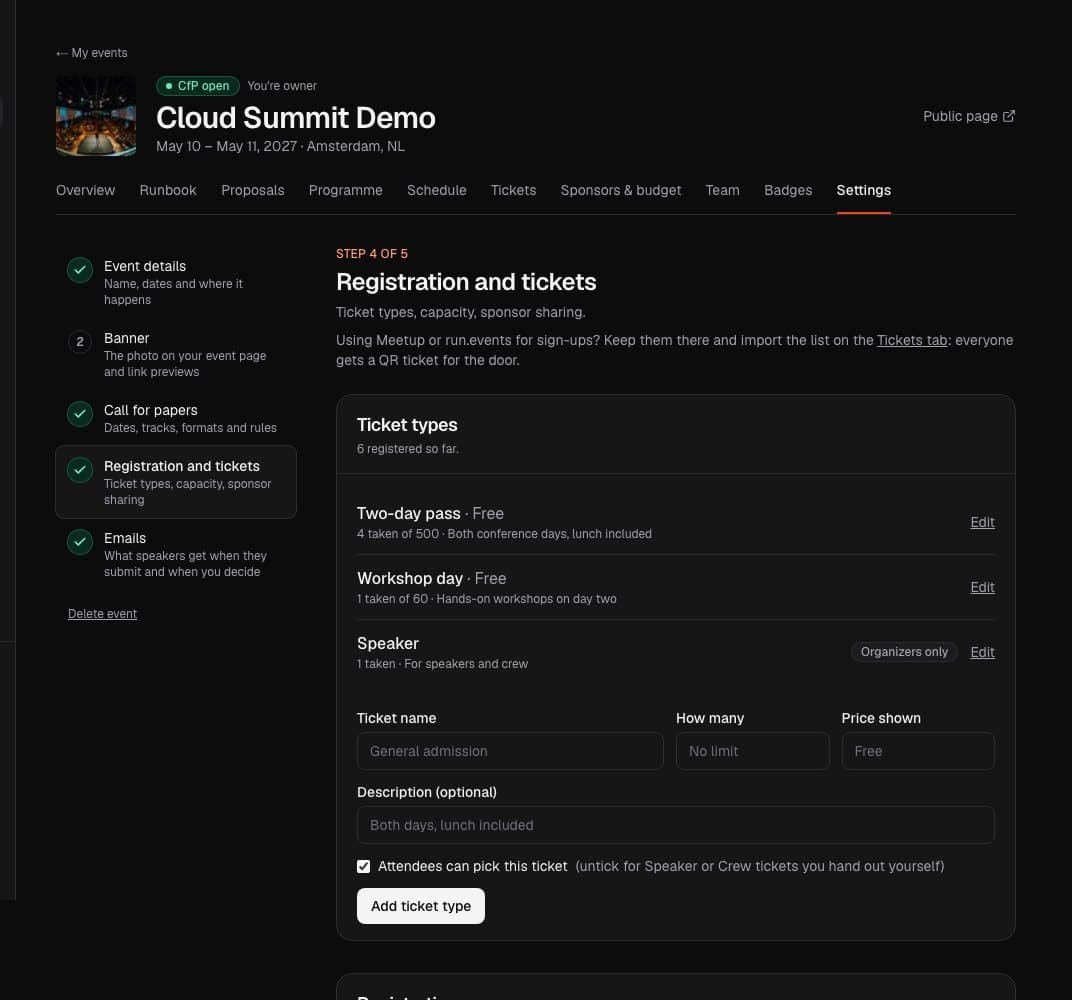
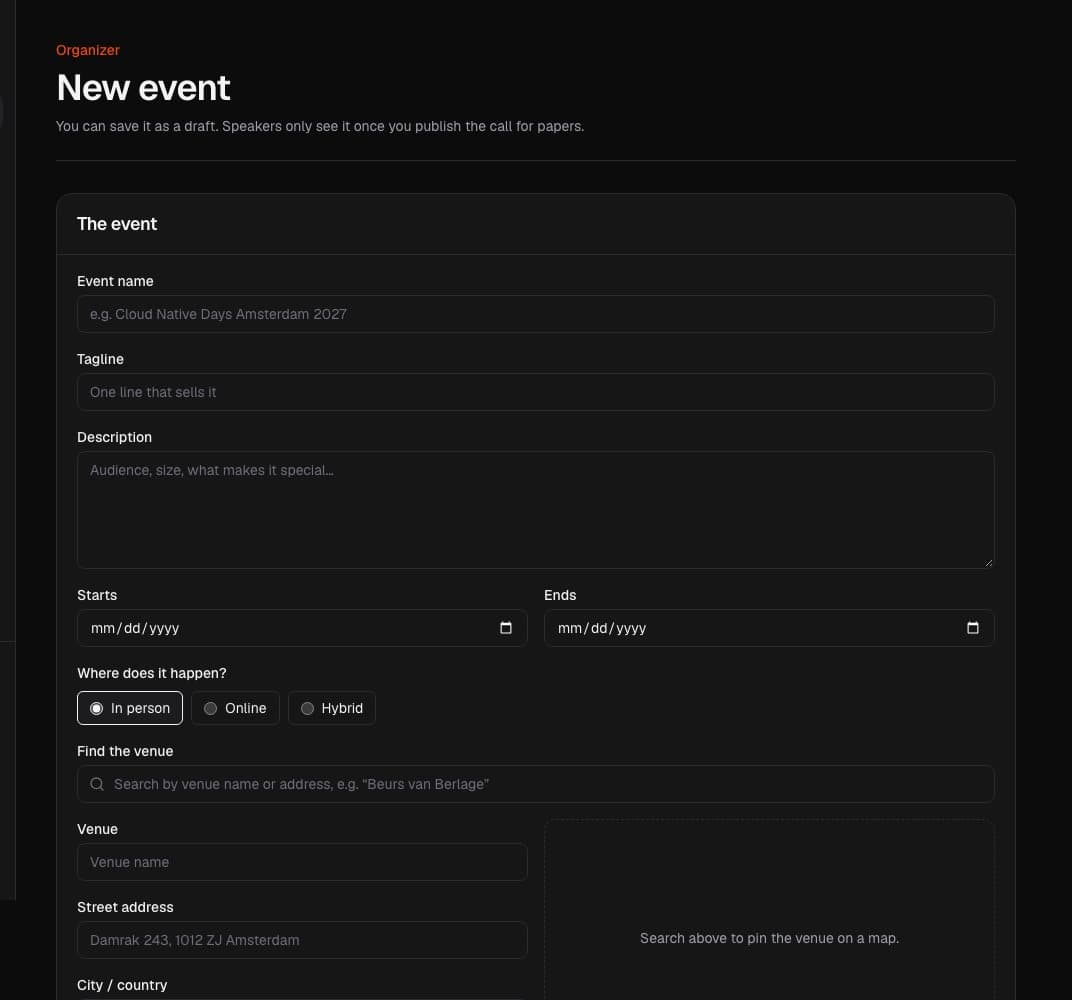
Event settings are now five short steps: details, banner, call for papers, registration and emails. A tick shows what's done, and "Save and continue" takes you to the next step. A new event starts with the basics only.
Registration and ticket types
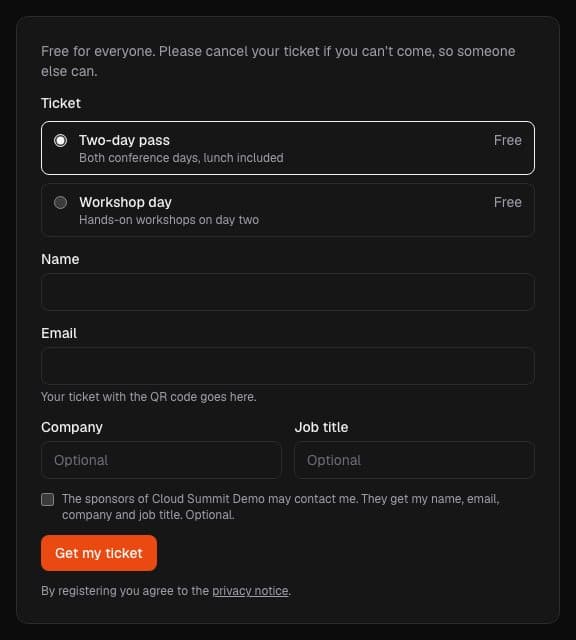
Open free registration on your event page, set a maximum number of attendees and a closing date, and add ticket types such as a two-day pass, a workshop day, or Speaker and Crew tickets you hand out yourself.
Check in at the door
Open the check-in screen on any phone and scan tickets with the camera, or search by name for people without one. A ticket can only be used once, and volunteers on your team can run the door too.
Import from Meetup and run.events
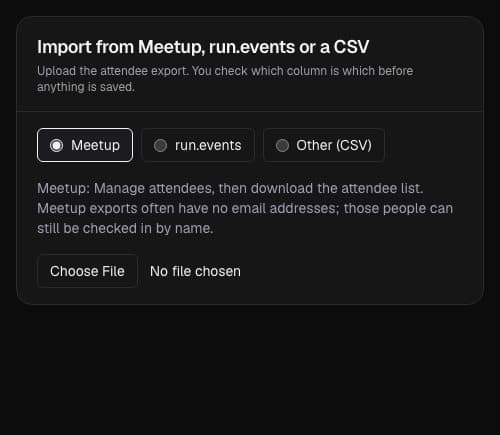
Upload the attendee export from Meetup, run.events or any spreadsheet. You check which column is which before anything is saved, then email everyone their QR ticket with one click.
Attendee list and exports
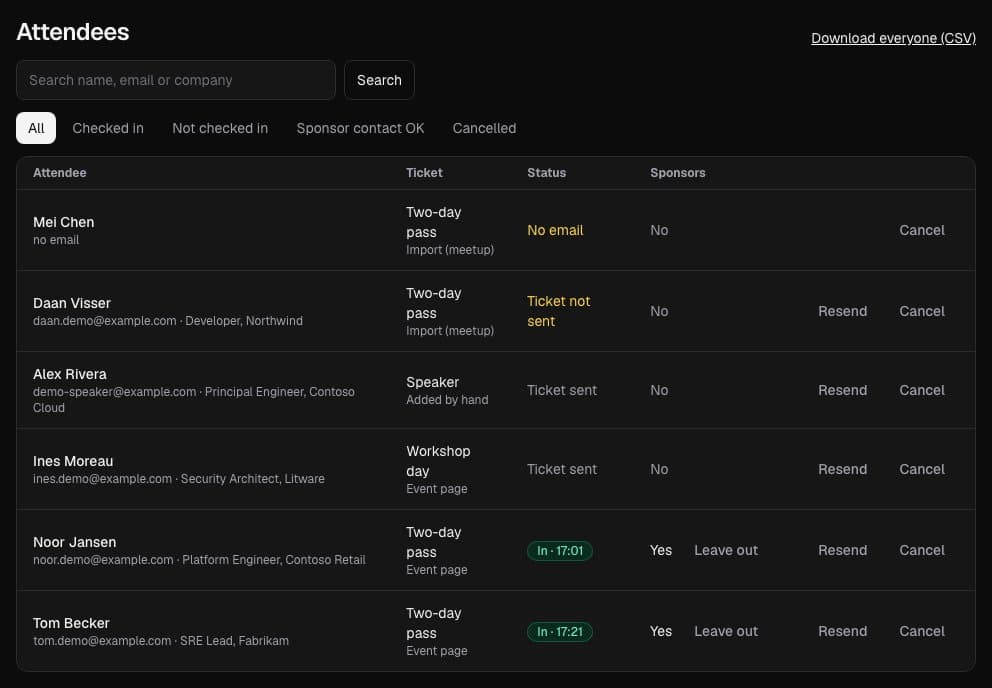
See who registered, who has their ticket and who is in. Resend or cancel tickets, filter the list, and download it as a spreadsheet.
Sponsors
Attendee contacts for sponsors
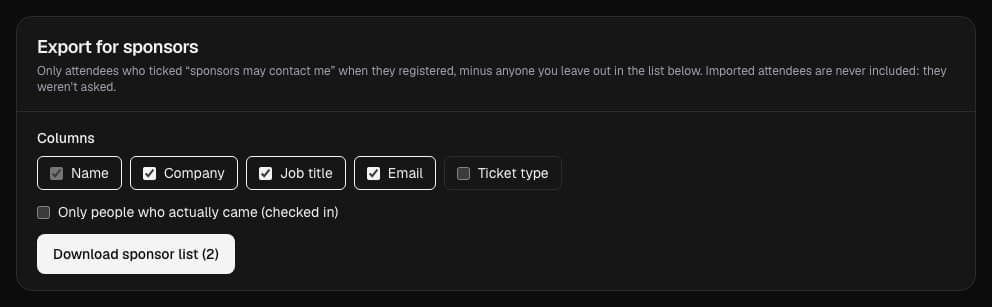
Organizers can give sponsors a list of attendees who agreed to be contacted when they registered, with only the columns they choose. Attendees can withdraw that consent from their ticket at any time.
Account and privacy
Share buttons with platform logos
The share buttons on event pages now show the LinkedIn, X, Bluesky, Facebook and WhatsApp logos, so you can spot your network at a glance. On a phone the logos take less room.
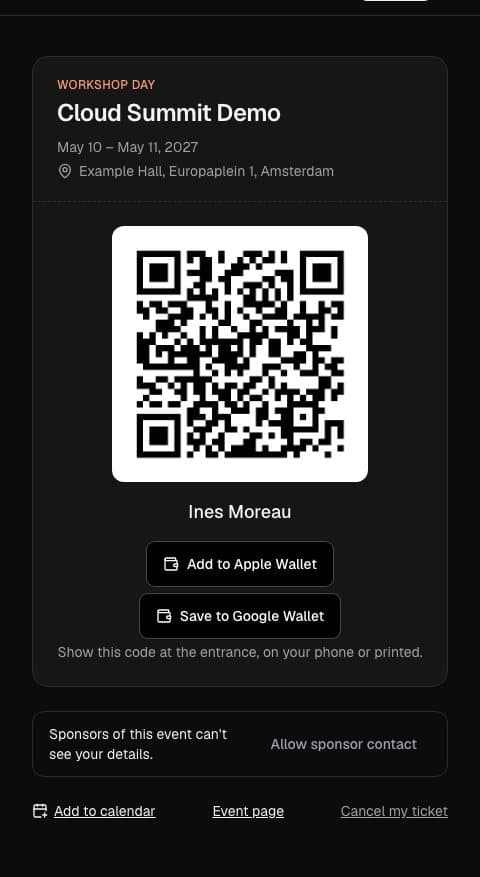
Add your ticket to Apple Wallet or Google Wallet straight from the ticket email or the ticket page. The QR code at the entrance is the same one.
A clearer ticket email
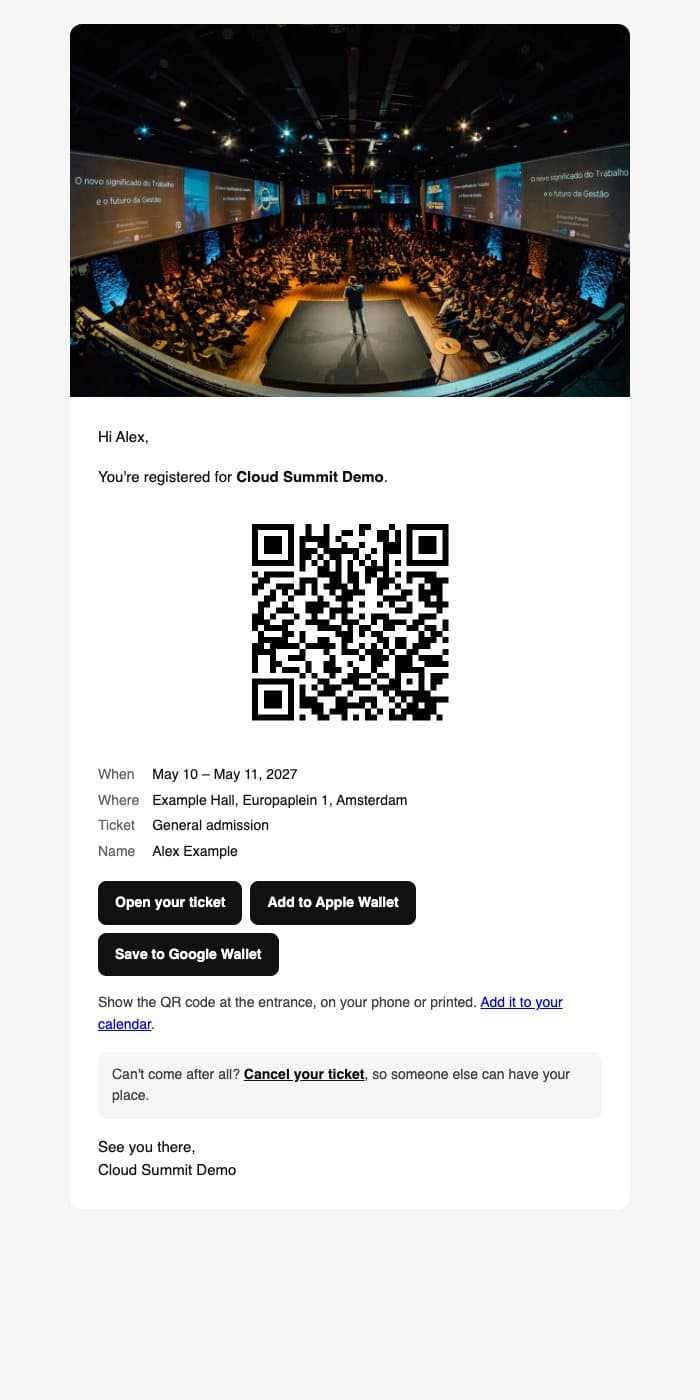
The ticket email now opens with the event's banner, has the wallet buttons, and a link to cancel your ticket if you can't come, so your place goes to someone else.
Register and get a QR ticket
Attendees register on the event page with their name and email, and get their ticket with a QR code by email straight away. No account needed.
Every ticket has its own page with the QR code, the event details and a calendar link. Can't come after all? Cancel from the same page, so someone else can have your place.
Schedules, calendar files and decision emails
Build a timetable with rooms and time slots, tell every speaker the outcome by email, and put sessions straight into anyone's calendar.
Speakers
Confirm your accepted sessions
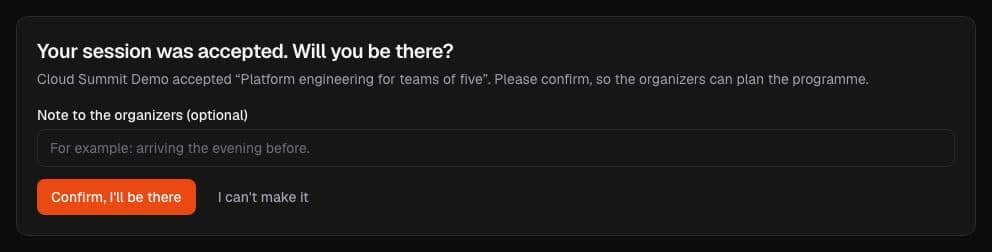
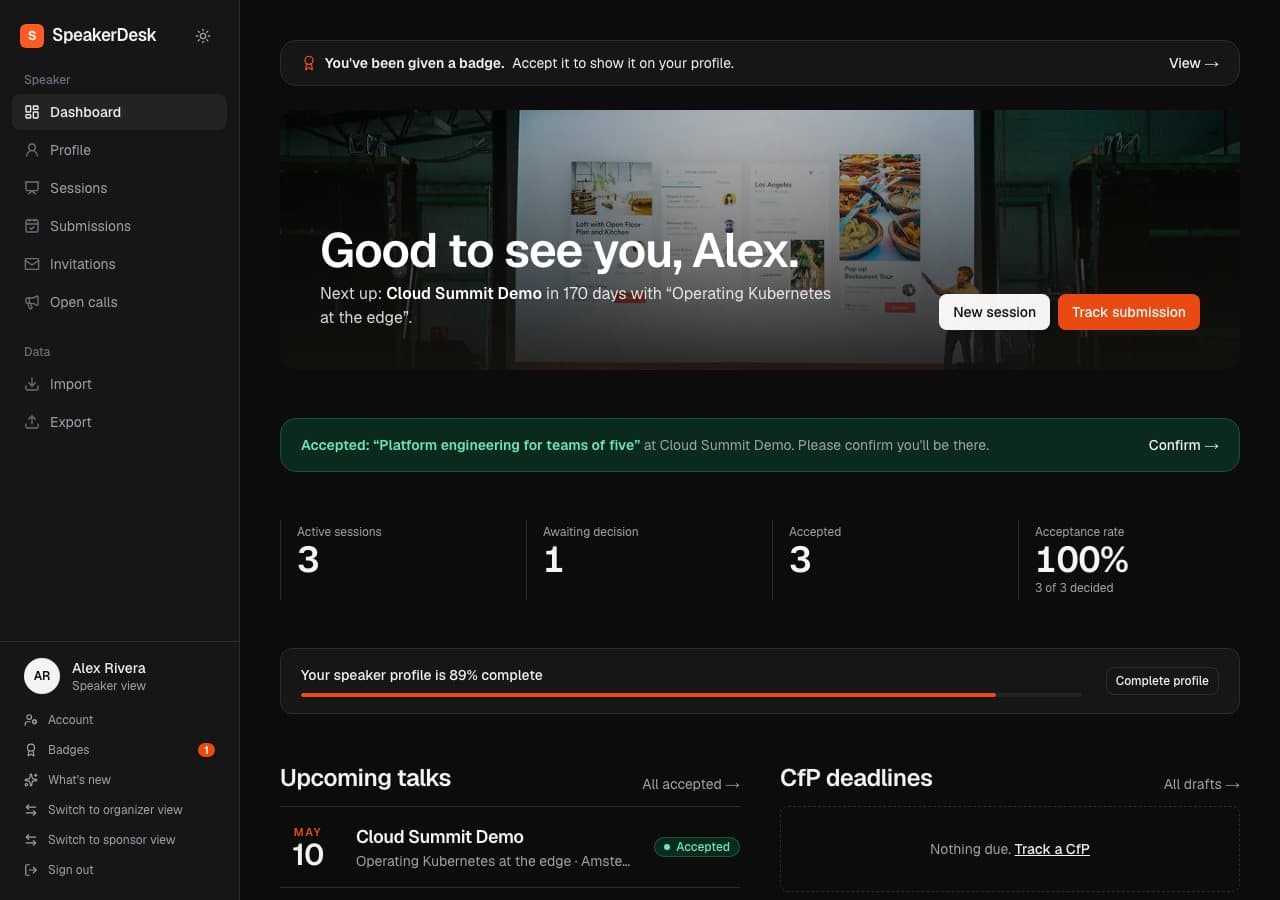
When a talk is accepted you get an email and a reminder on your dashboard. Confirm with one click, or let the organizers know you can't make it, with an optional note.
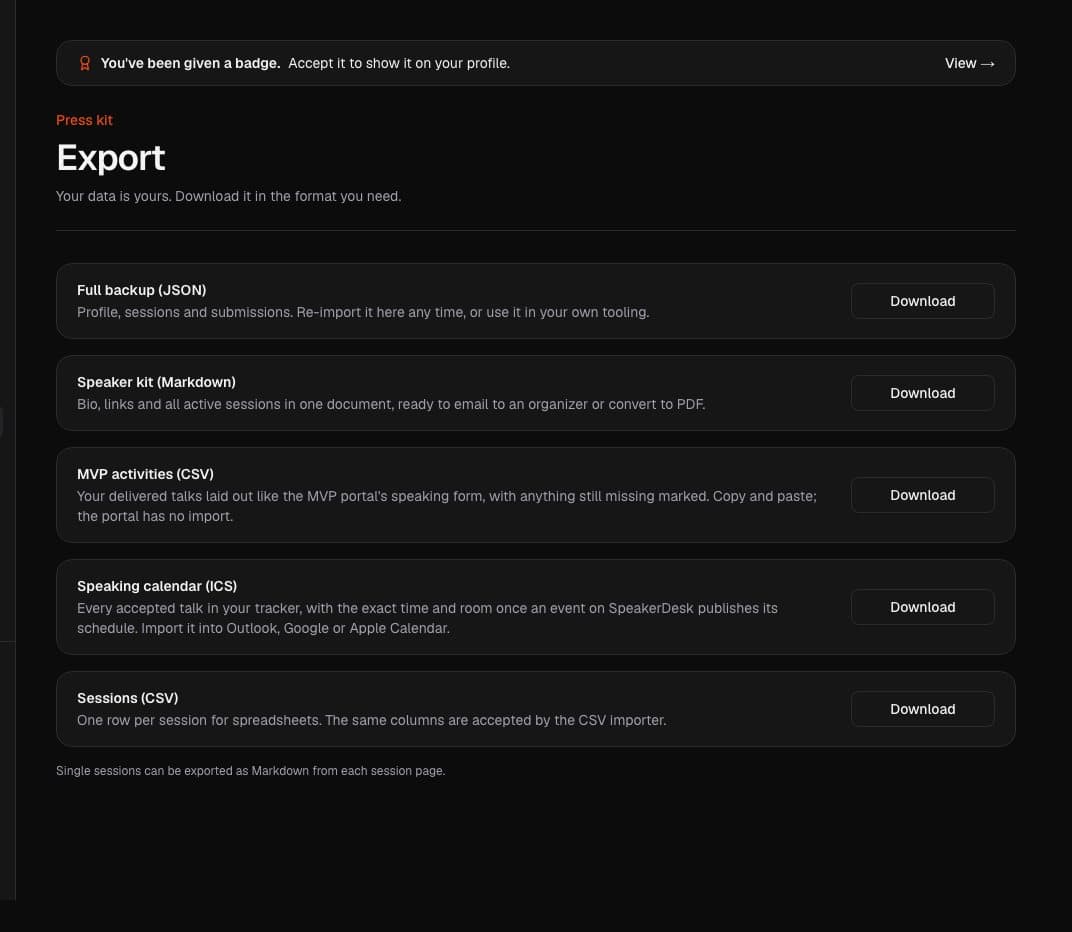
Once the schedule is published you get your time and room by email, with a calendar file. Your export page also has a speaking calendar with every accepted talk.
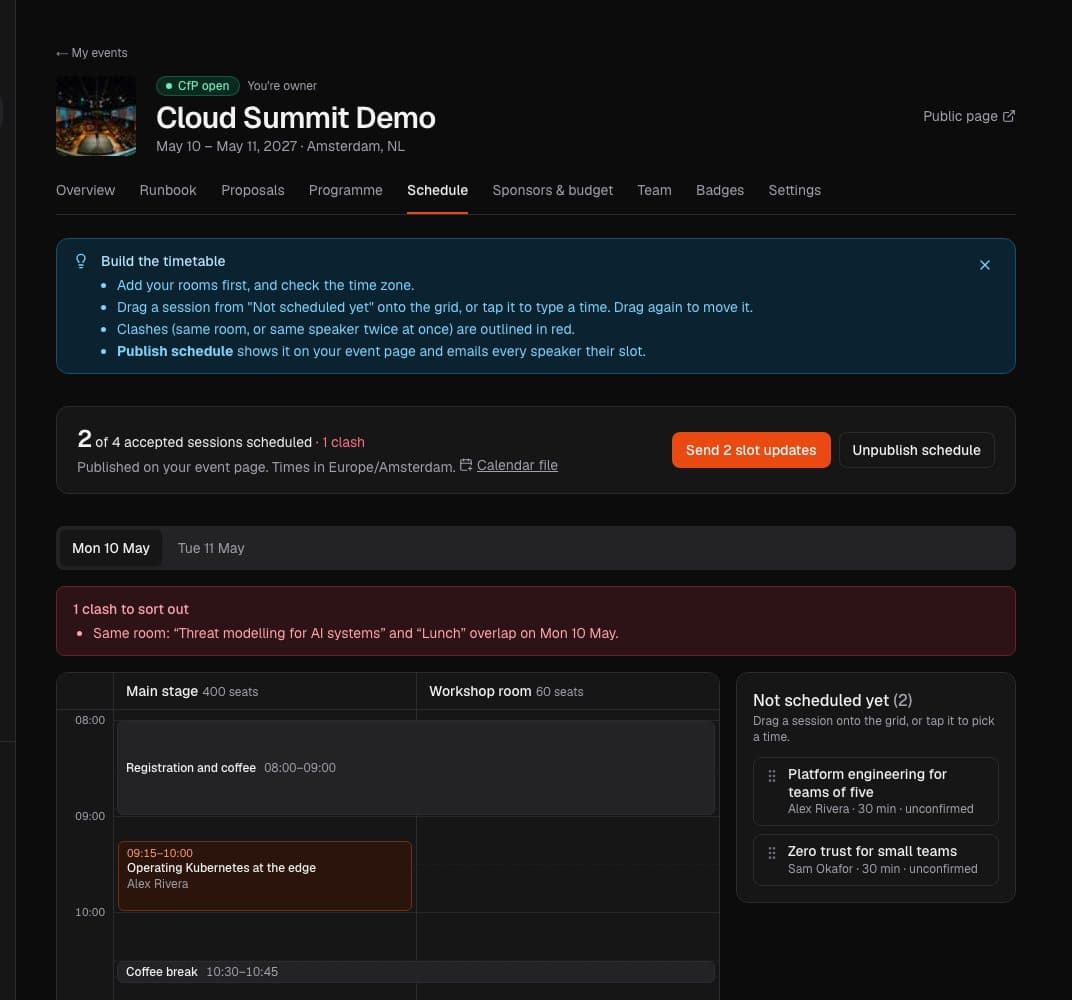
A new Schedule tab with a column per room and a tab per day. Drag accepted sessions onto the grid (or pick a day, time and room on your phone), add breaks and plenary items, and get a warning when a room or a speaker is double-booked.
Publish the schedule
Publishing puts the timetable on your event page and emails every scheduled speaker their time slot. Move a session later and you can send just the changed slots.
Decision emails
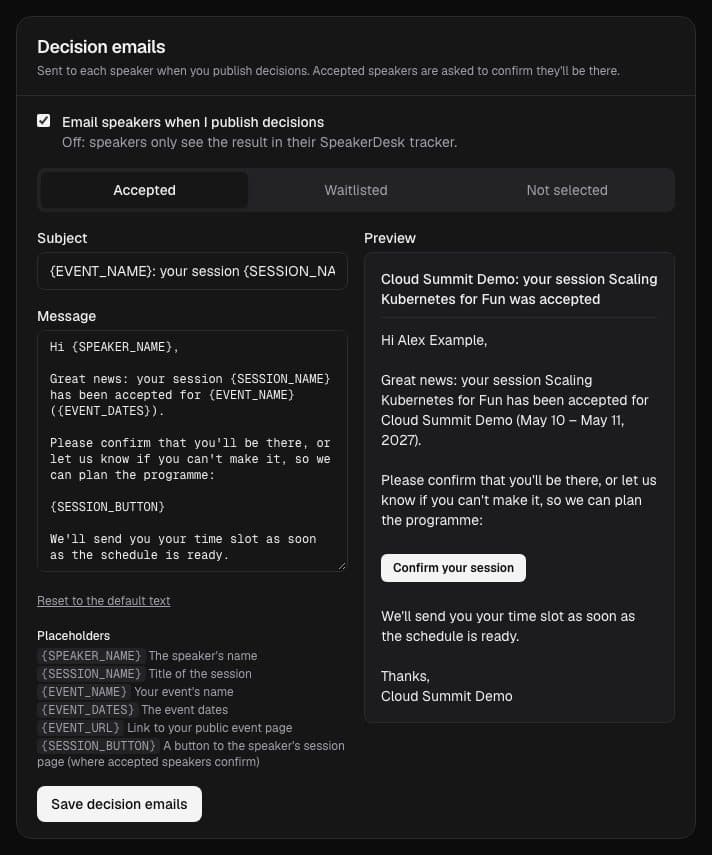
Publishing decisions now emails each speaker: accepted, waitlisted or not selected. Edit the three emails per event in Settings, with placeholders and a live preview, or switch them off.
Speaker confirmation
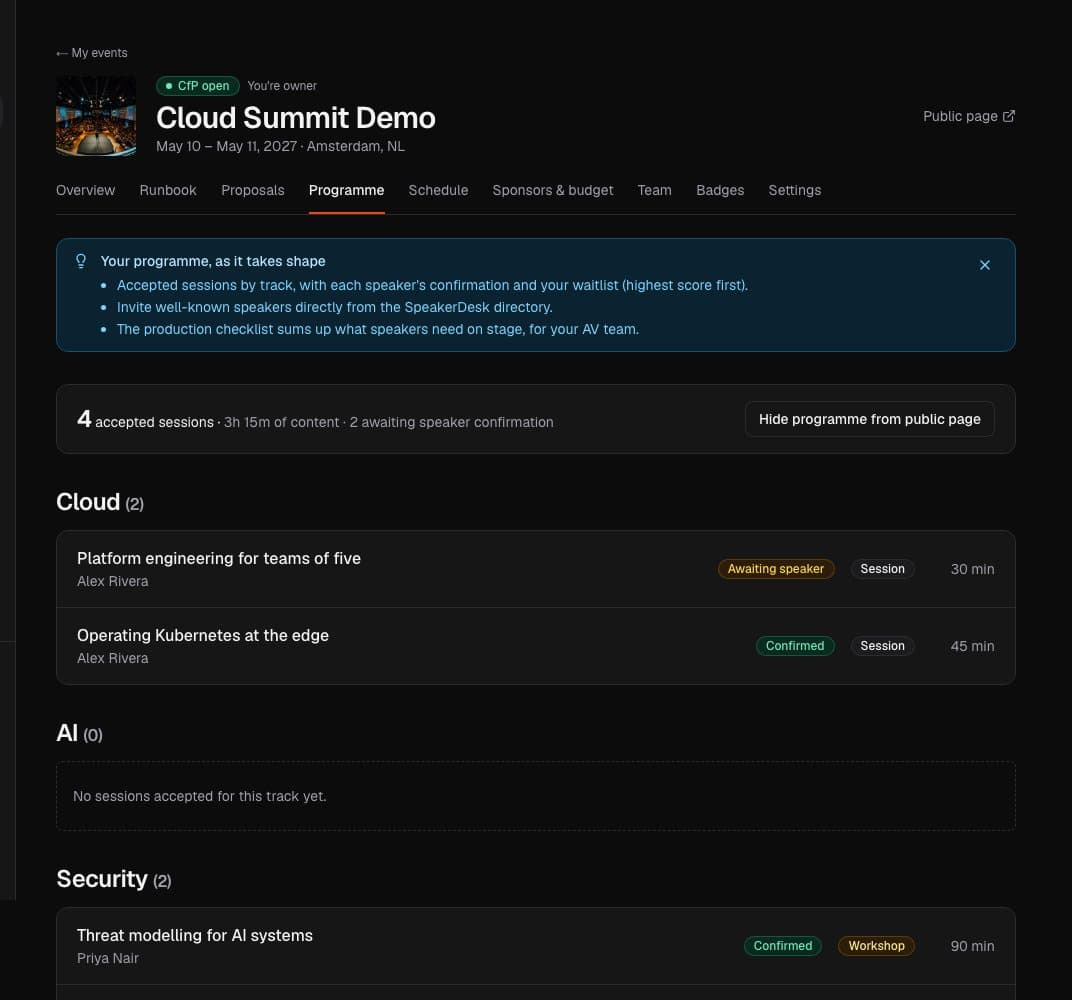
Accepted speakers confirm they'll be there, or tell you they can't make it. The Programme tab shows who has confirmed, and you get an email either way. Declined sessions leave the programme and schedule automatically.
Account and privacy
Add events and sessions to your calendar
Every event page has an "Add to your calendar" button, and with a published schedule each session has its own calendar link. Works with Outlook, Google and Apple Calendar.
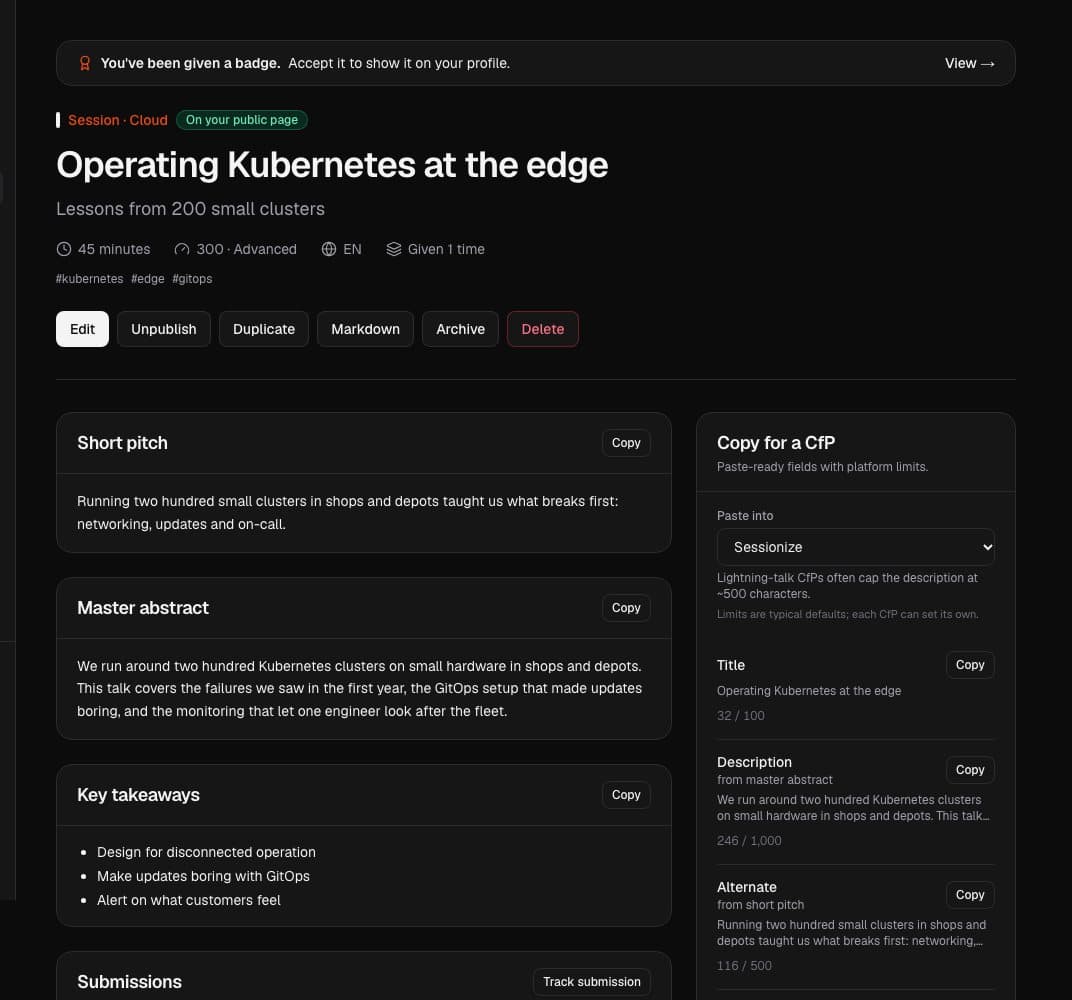
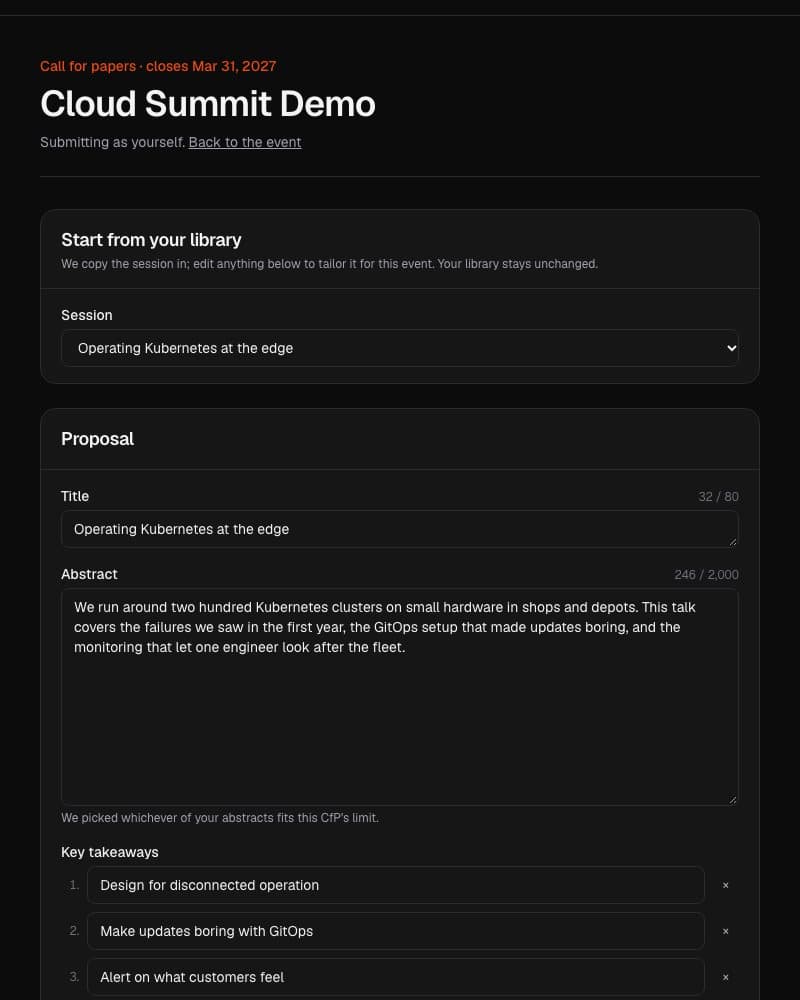
Copy your bio and abstracts in the right length for Sessionize, run.events, Pretalx and PaperCall, with a warning when text goes over the usual character limit.
Submission tracker
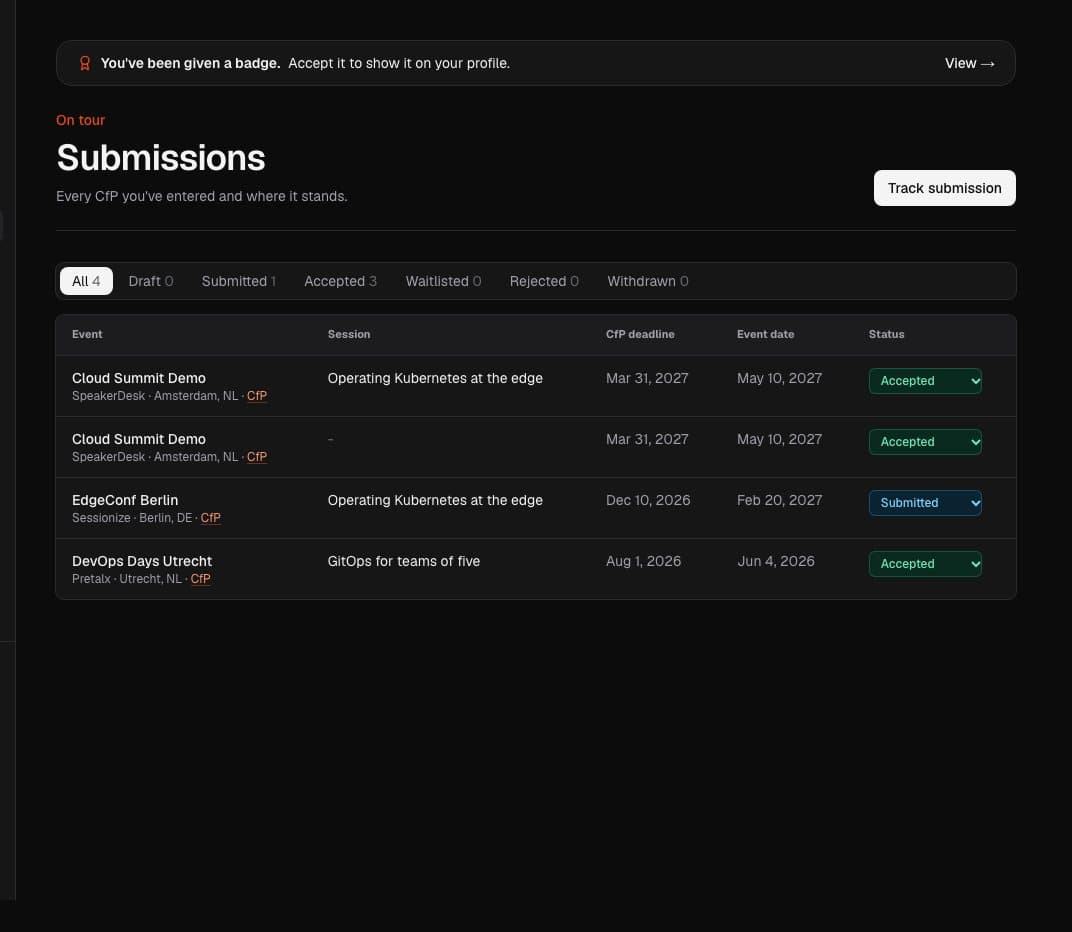
Track every CfP you submit to, on SpeakerDesk or elsewhere: deadlines, status from draft to accepted, and the decision when it arrives.
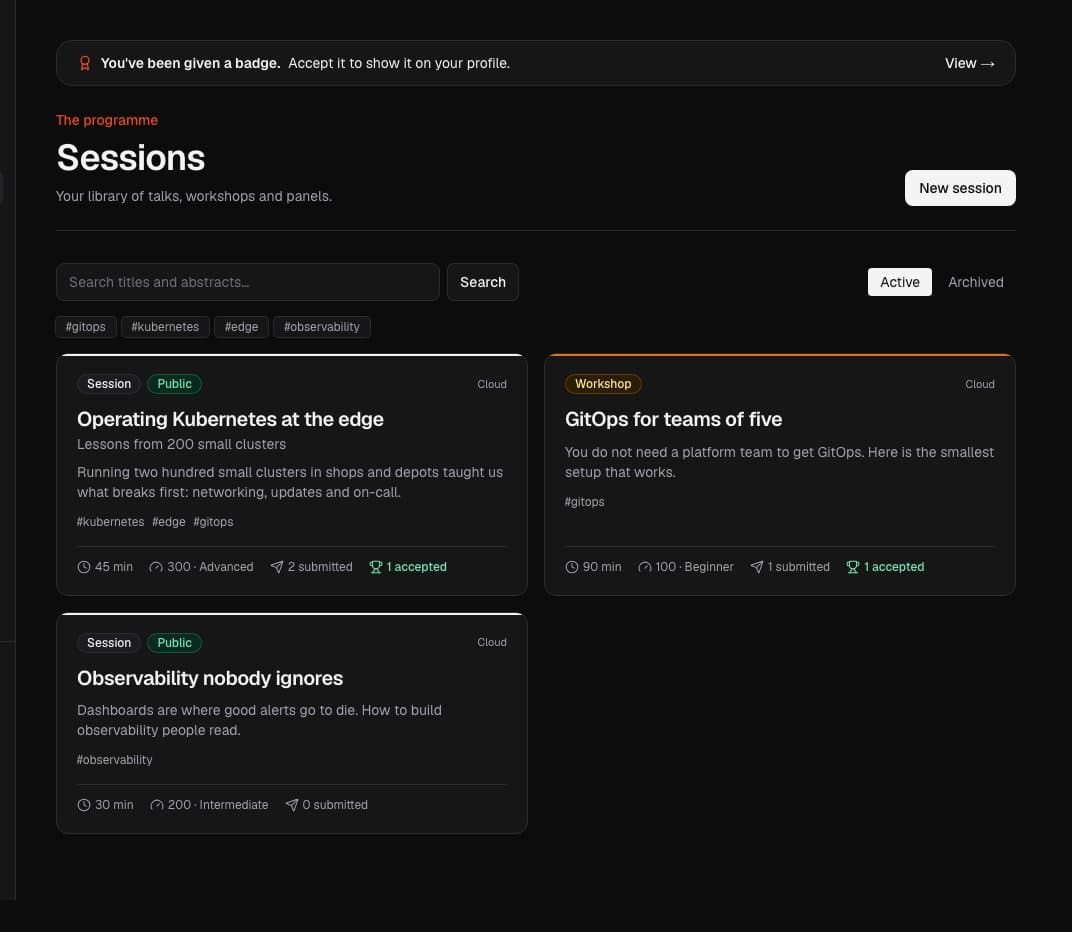
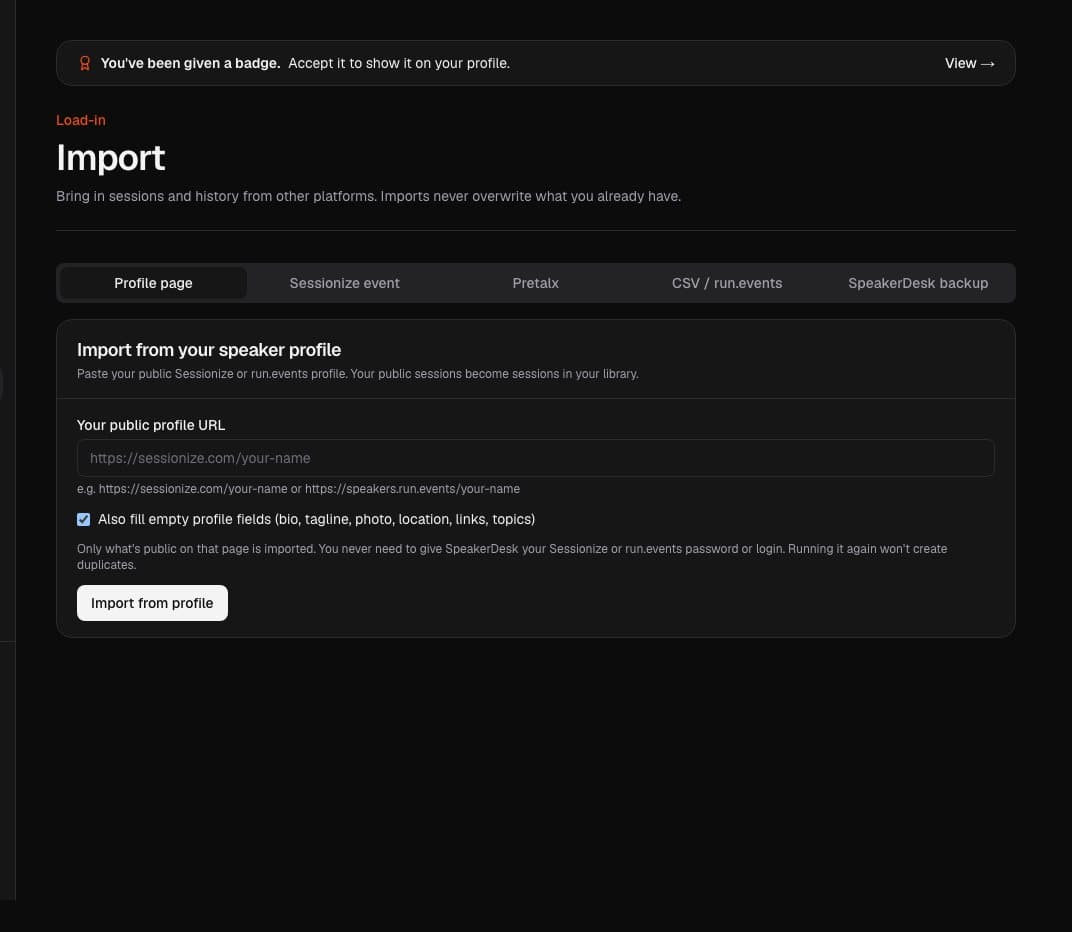
Bring in sessions and past talks from your public Sessionize or run.events profile, a Pretalx event or a CSV file. Imports never overwrite what you already have.
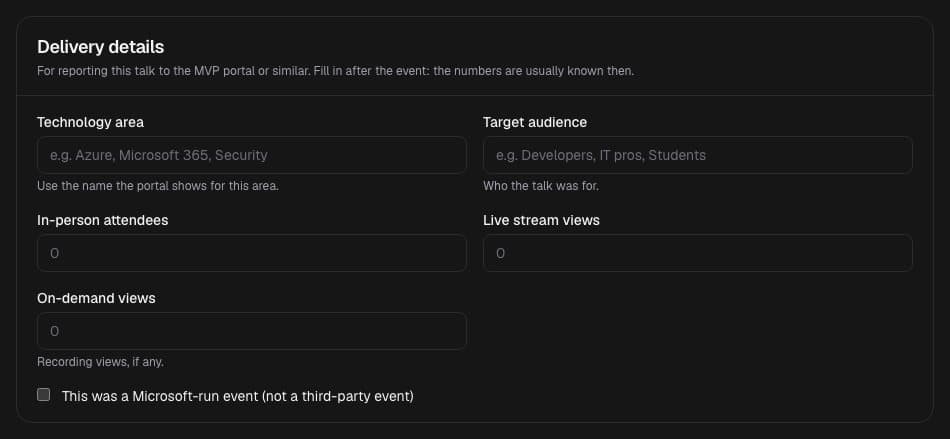
Download a full JSON backup, a speaker kit in Markdown, a CSV of your sessions, or an MVP activities sheet laid out like the Microsoft MVP portal's speaking form.
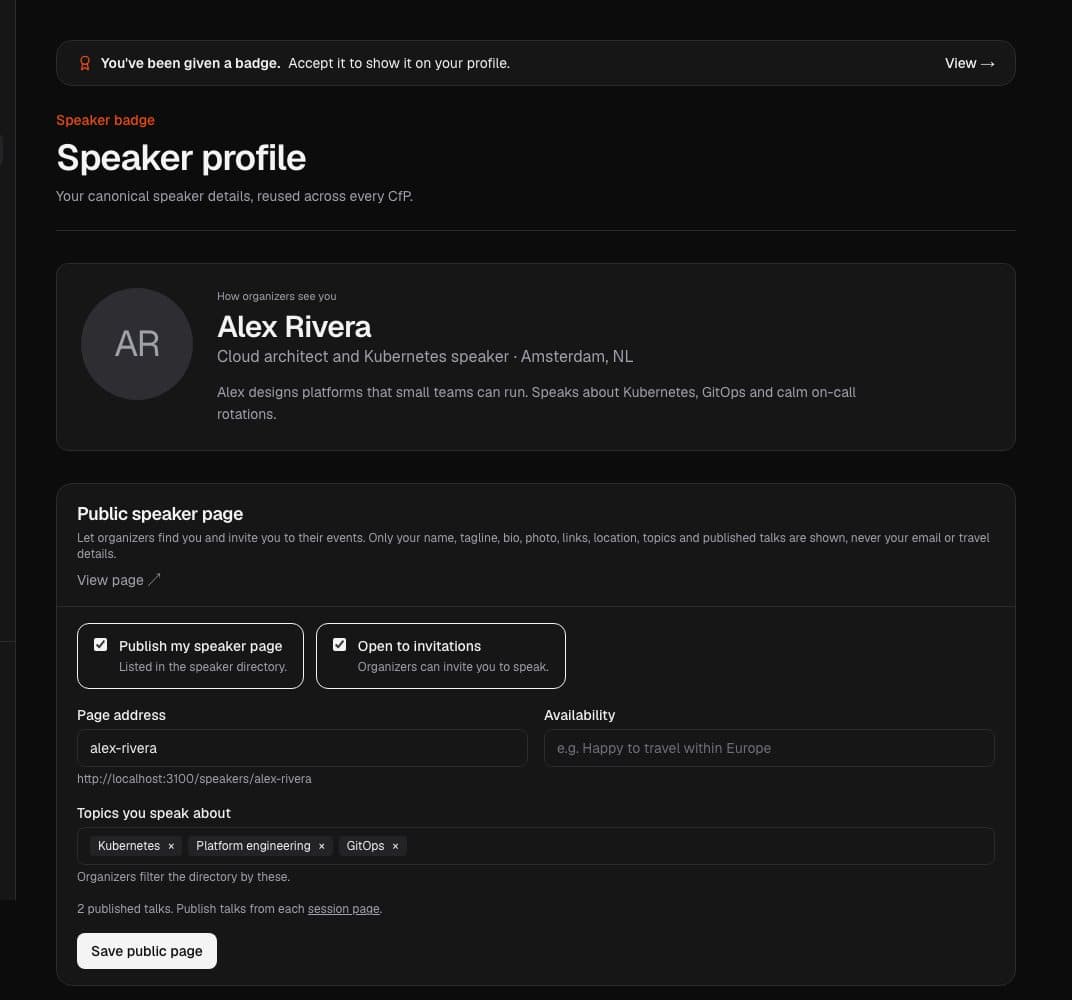
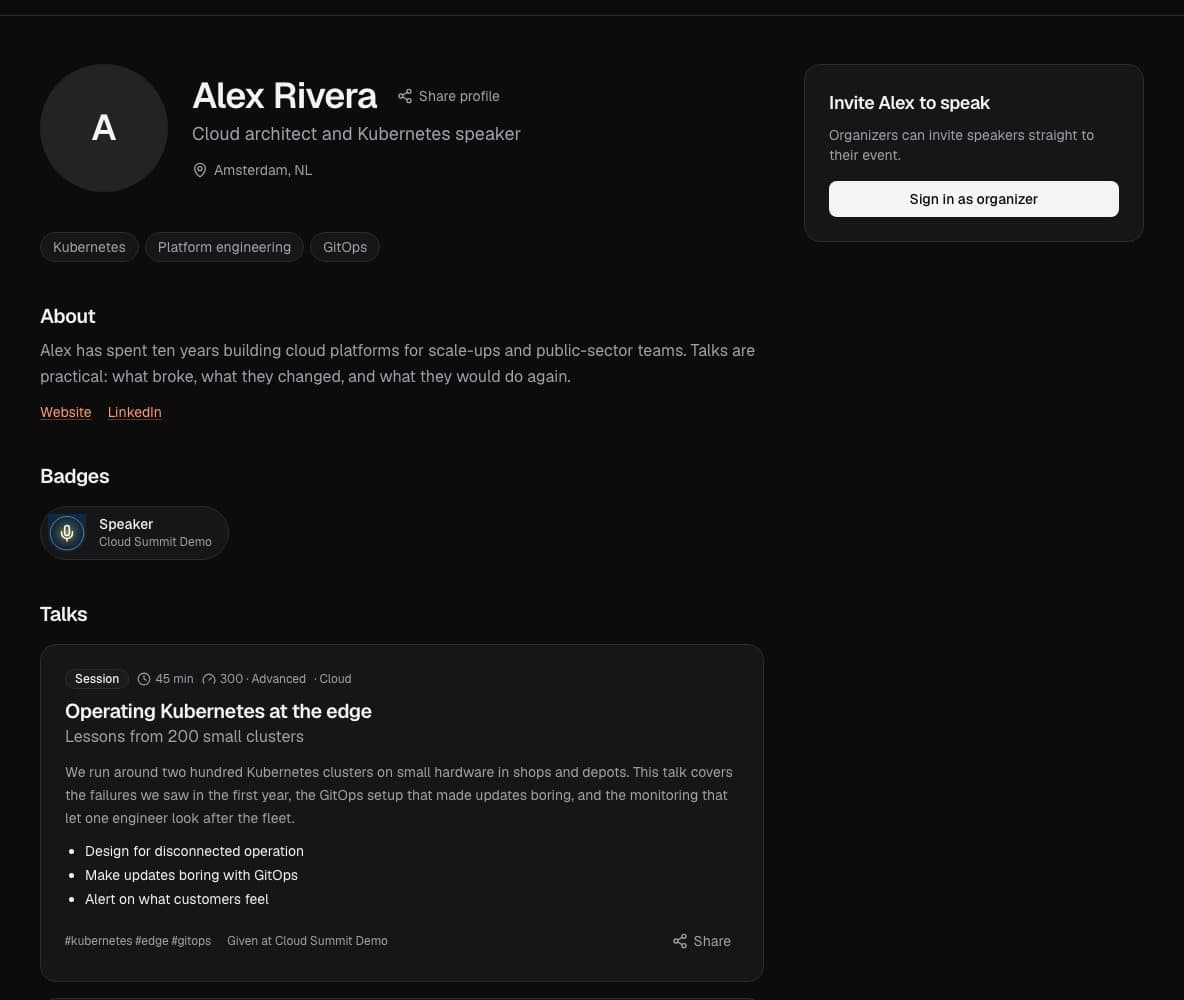
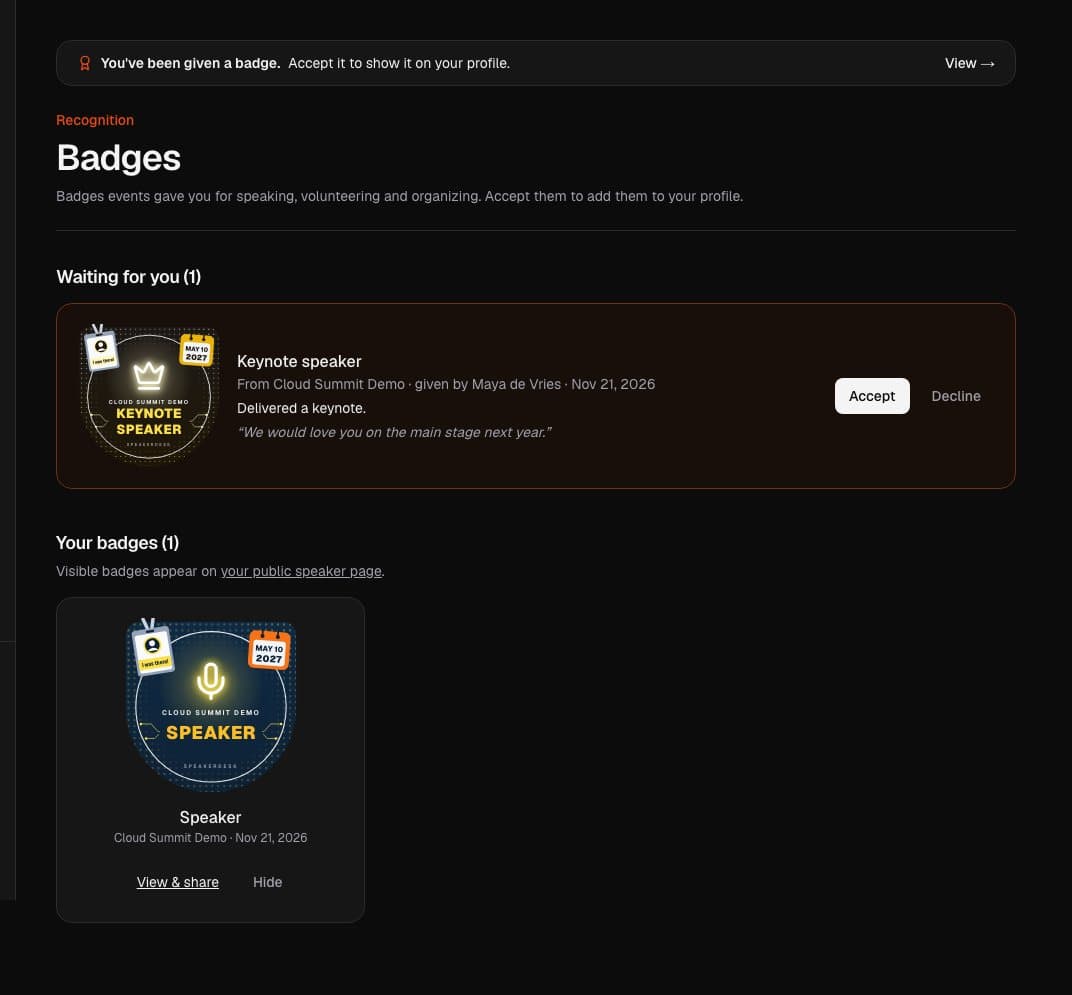
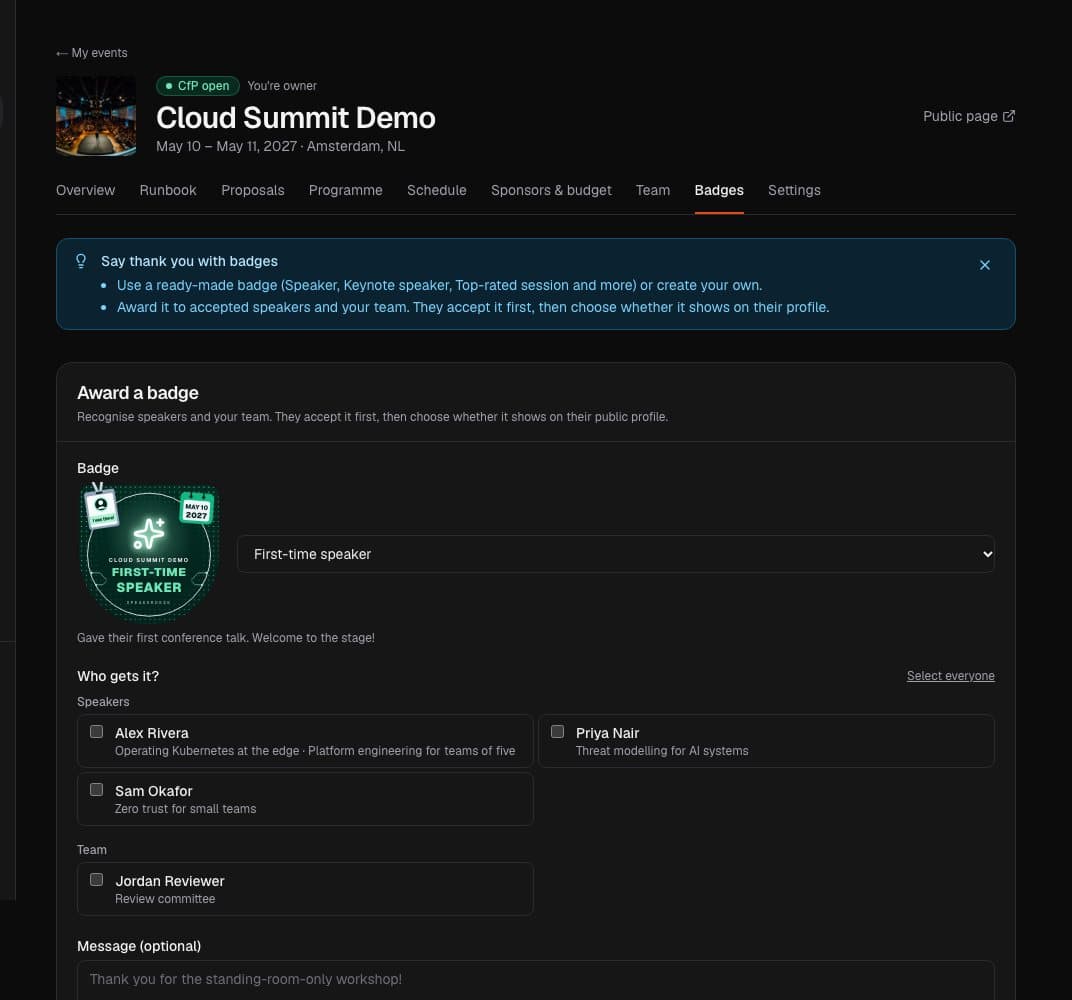
Events can award you badges, such as Speaker, Keynote speaker or Top-rated session. Accept the ones you want, show them on your profile and share each one as a verifiable credential page.
Tell organizers what you need on stage, from a confidence monitor to a lapel microphone, as part of your proposal.
Organizers
Publish a call for papers
Create your event with tracks, session formats, character limits, a proposal limit per speaker and a closing date. Mark it in person, online or hybrid, add a cover image and a venue on the map.
Every published event gets its own page with the CfP, programme and sponsors, share buttons and search engine friendly event details, so it shows up in search results.
Complete proposals
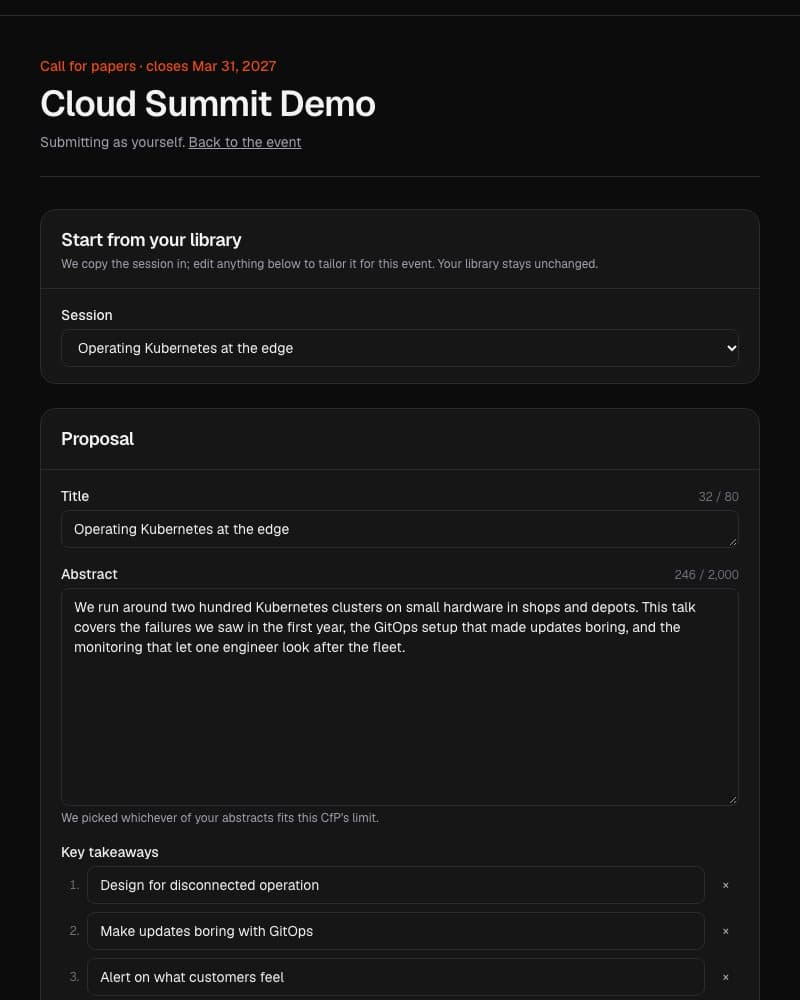
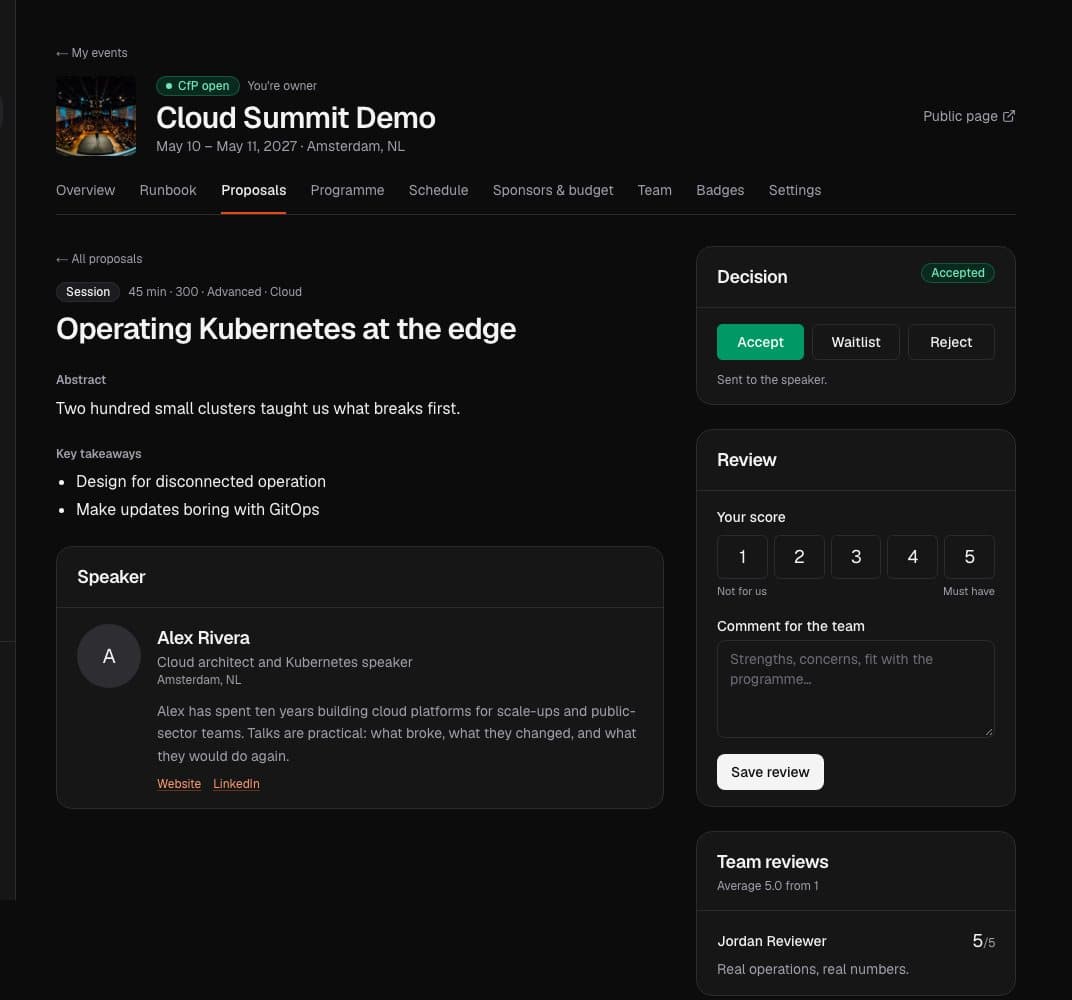
Proposals arrive as a snapshot with bio, headshot, abstract, takeaways and the speaker's stage requirements. No more chasing missing details.
Review with your team
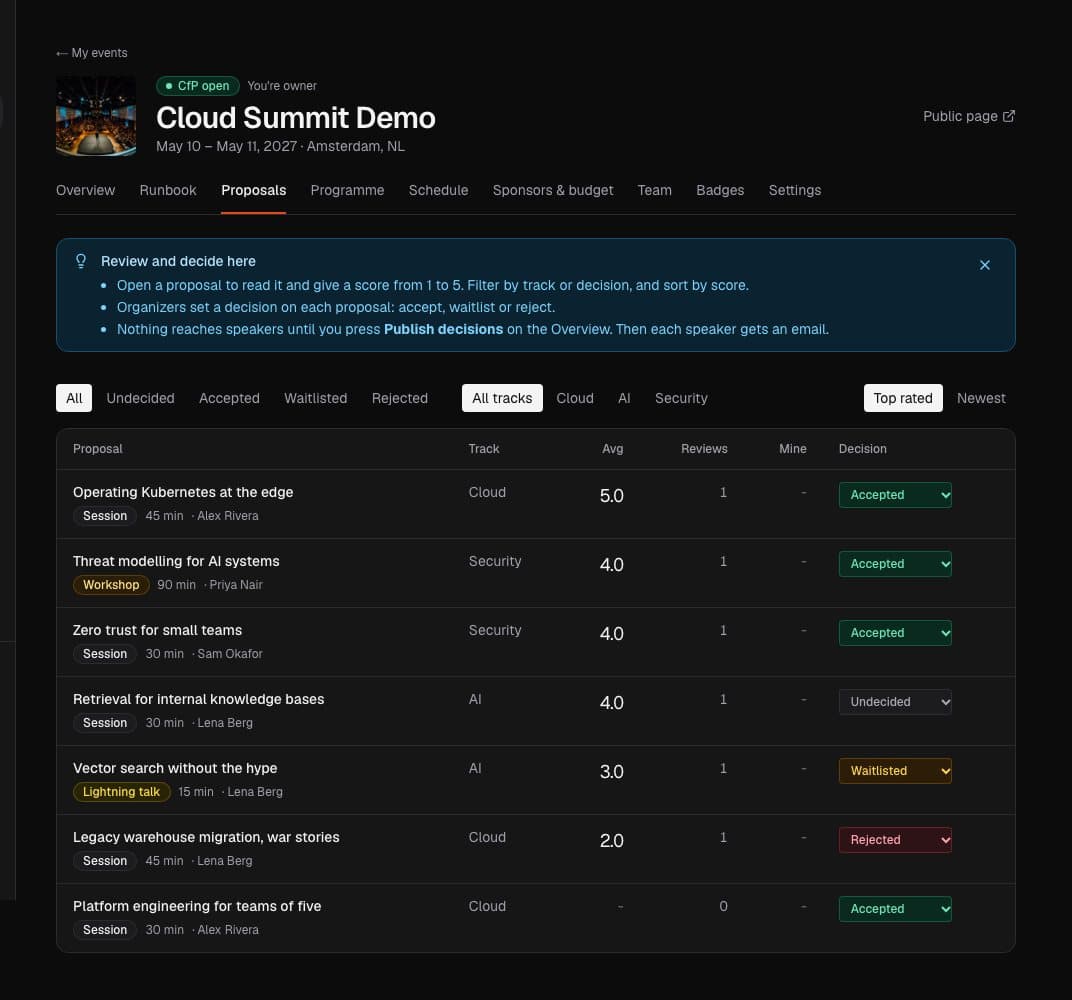
Score proposals with your review committee, with blind review if you like, so reviewers see the content without the speaker's name.
Decisions and programme
Accept, waitlist or reject, publish the decisions when you're ready, and publish the programme on your event page.
Invite speakers directly
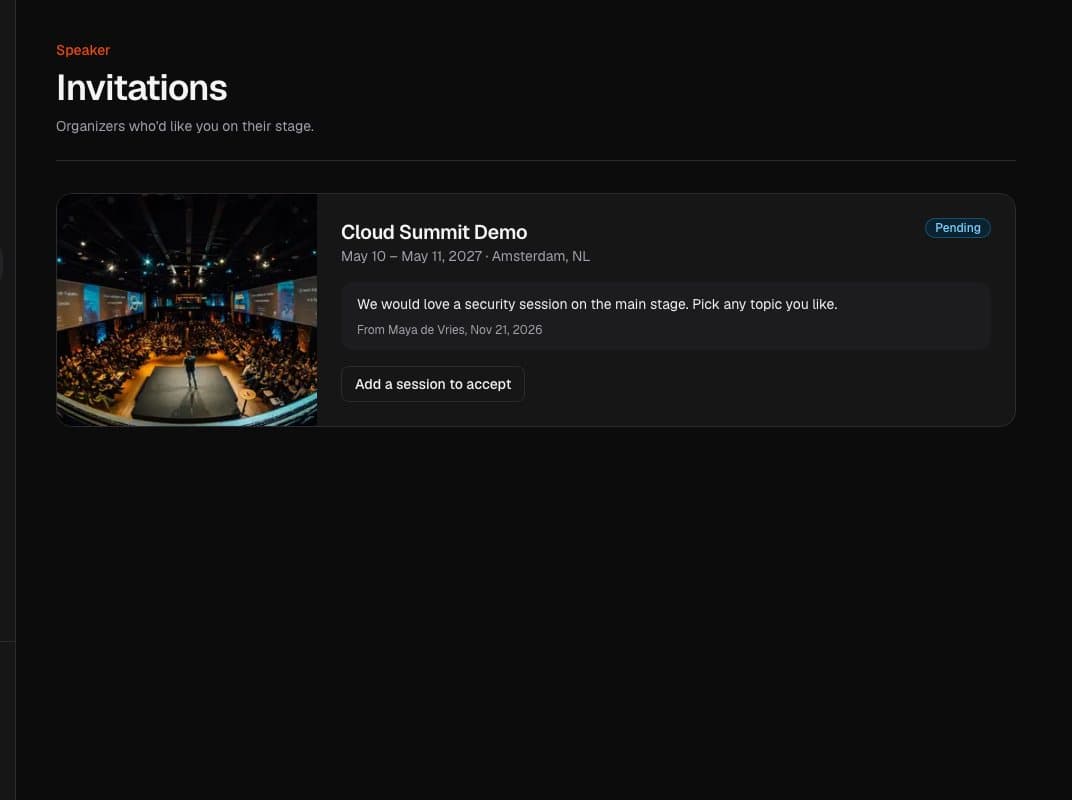
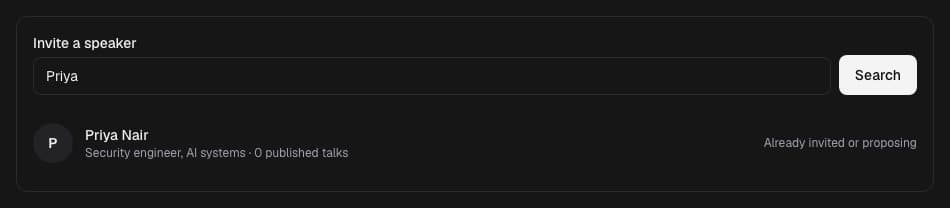
Invite a speaker from the directory or by email straight from your programme, for keynotes and invited talks.
Event team and roles
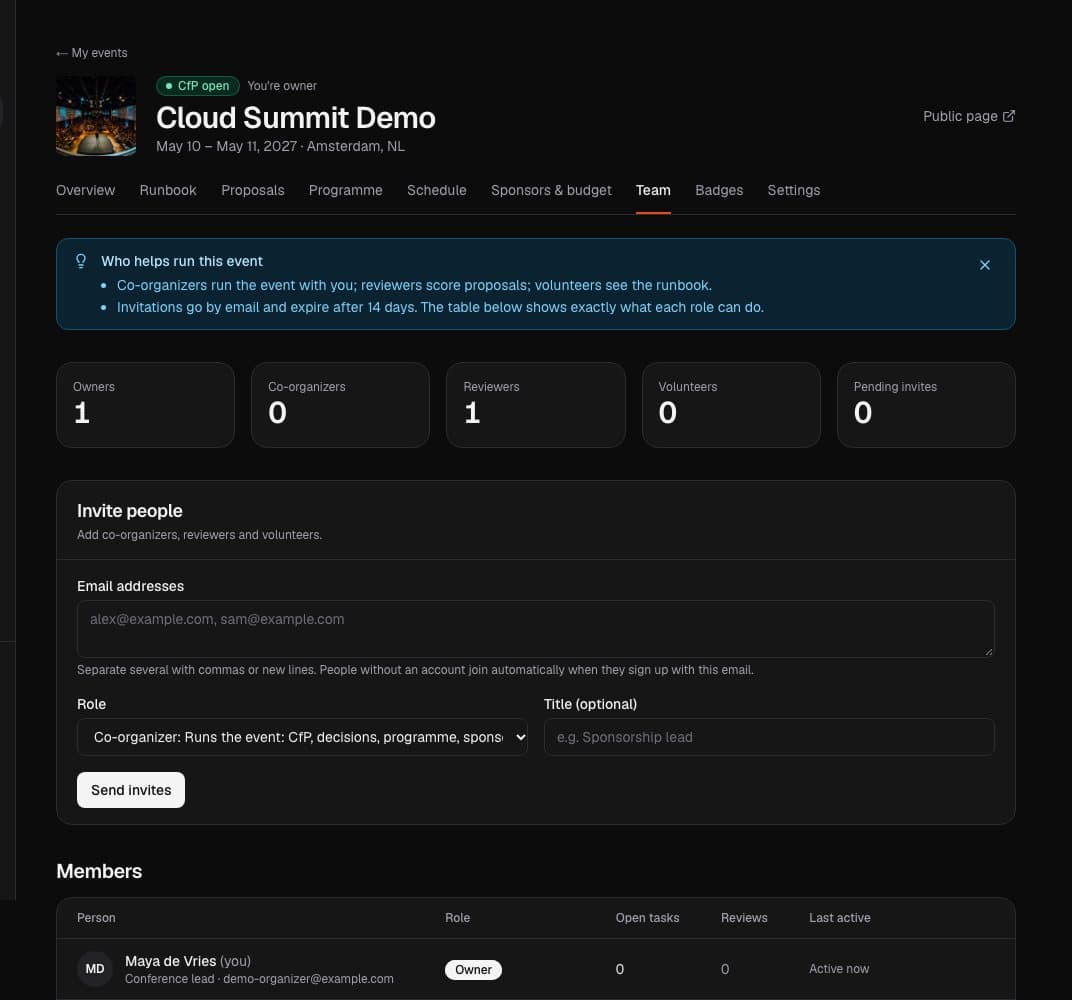
Add co-organizers, reviewers and volunteers. Each role sees only what it needs, and the People page shows everyone across all your events.
Event runbook
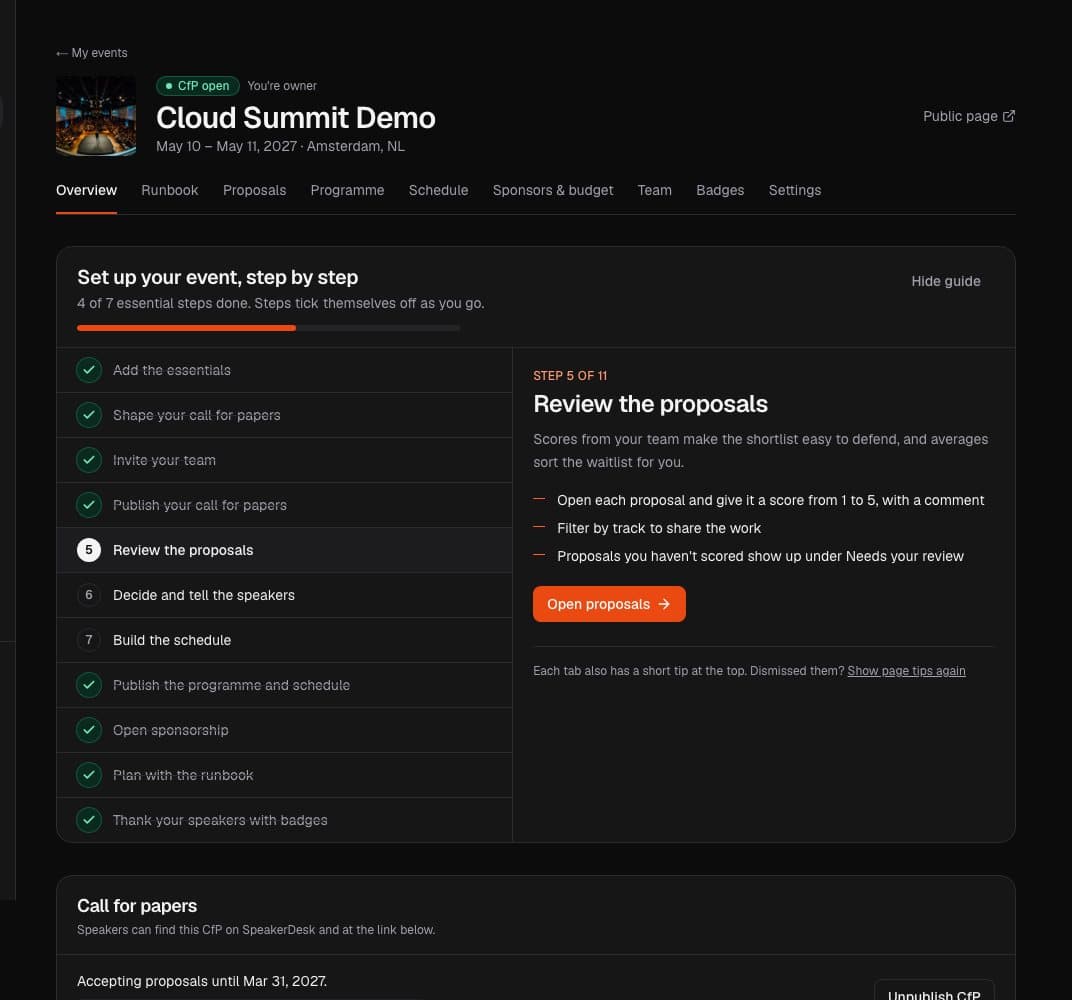
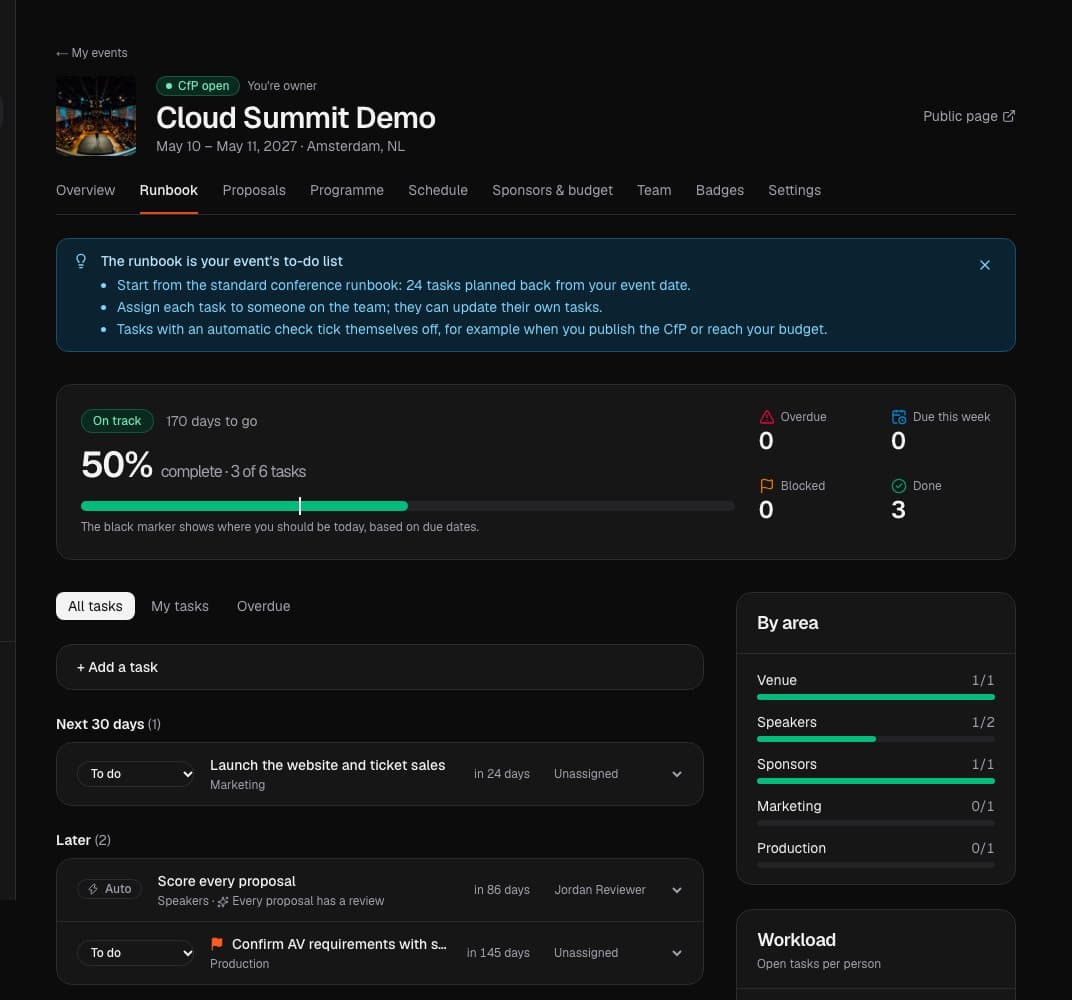
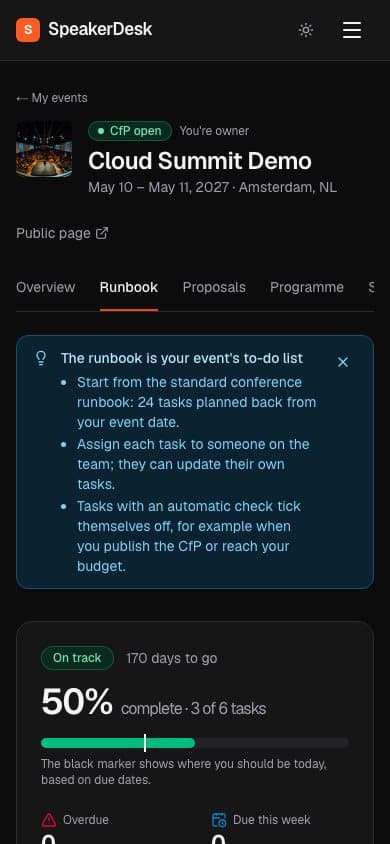
Start from a standard conference runbook with tasks planned back from your event date. Assign owners, track status, and let SpeakerDesk tick off tasks it can check by itself, like a published CfP or a reached budget target.
Sponsor packages and budget
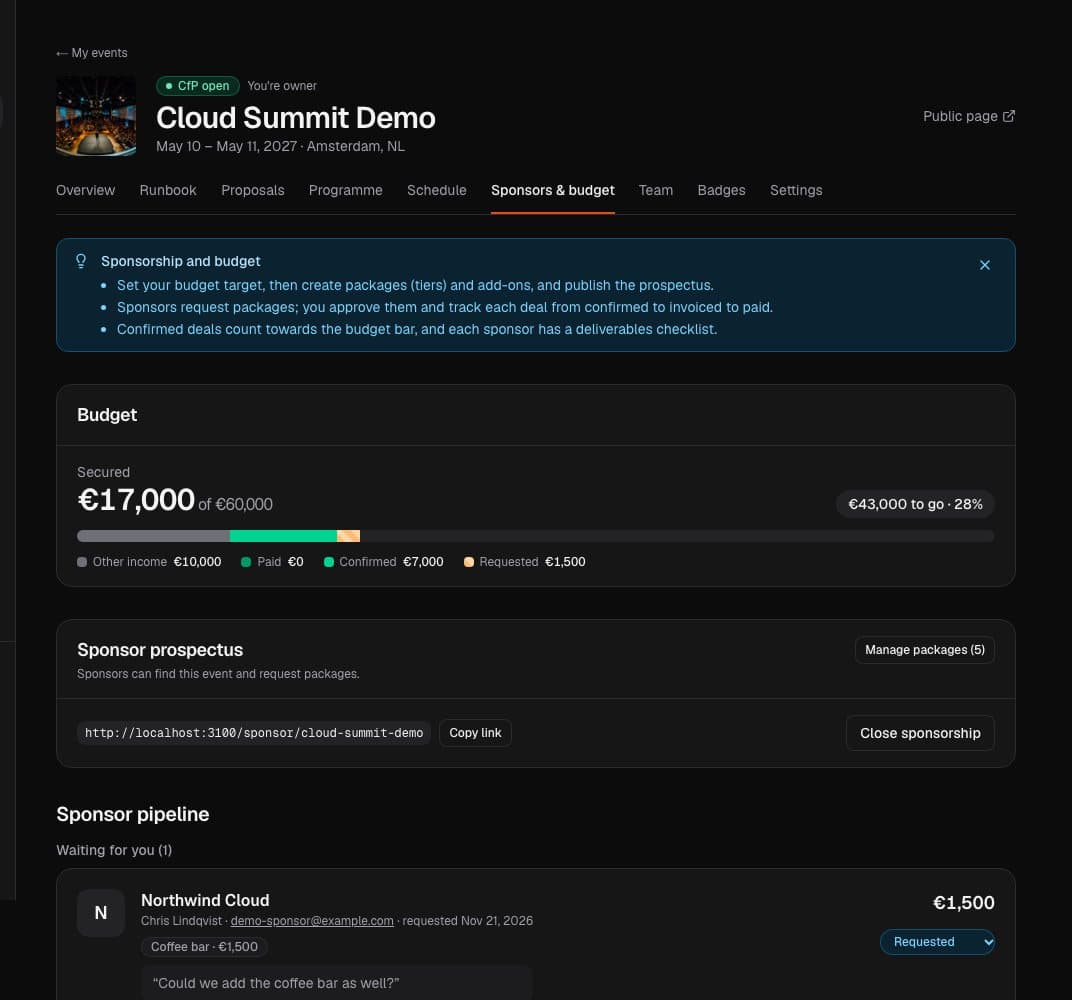
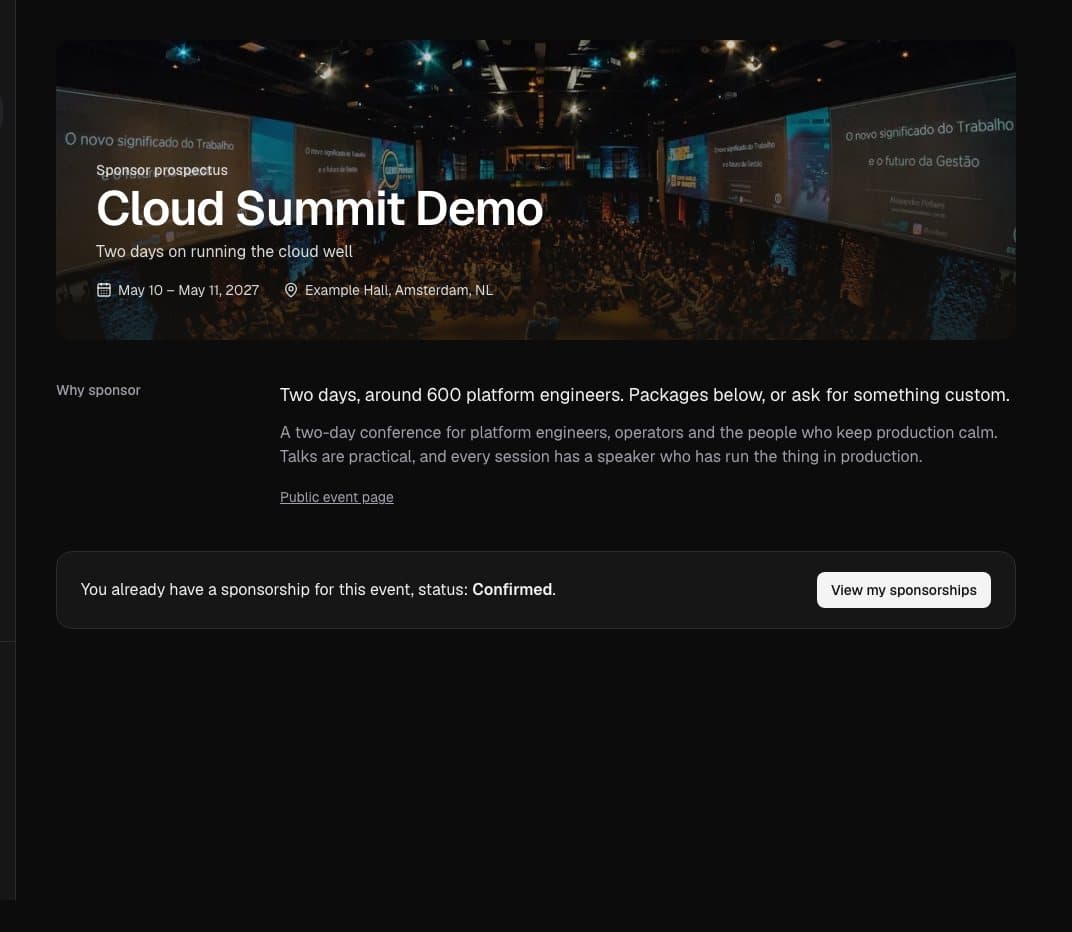
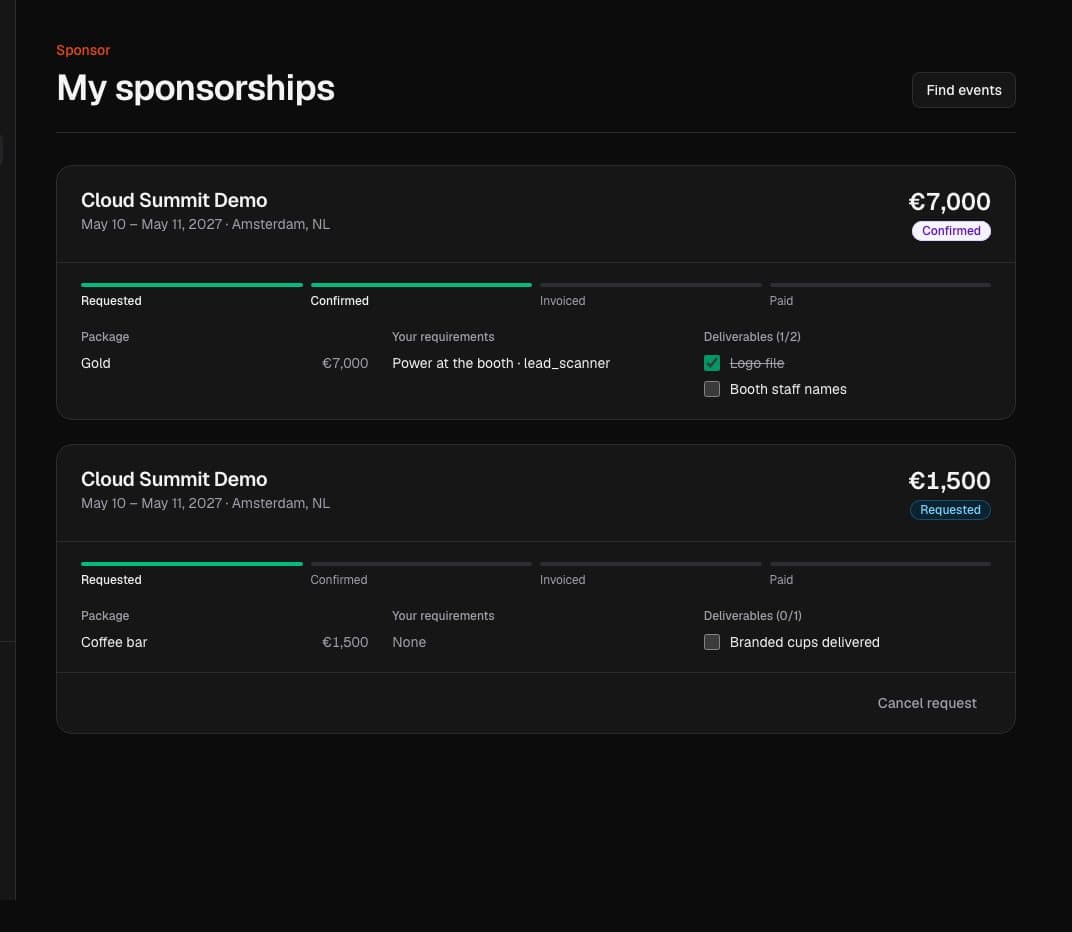
Publish a sponsor prospectus with packages and add-ons, approve requests, follow each deal from confirmed to invoiced to paid, and watch secured income against your budget target.
Sponsor deliverables
Track logos, booth needs and every other deliverable per sponsor until the doors open.
Badges for your speakers and team
Award ready-made or custom badges to accepted speakers and your team. They accept them and can share them as credentials.
Sponsors
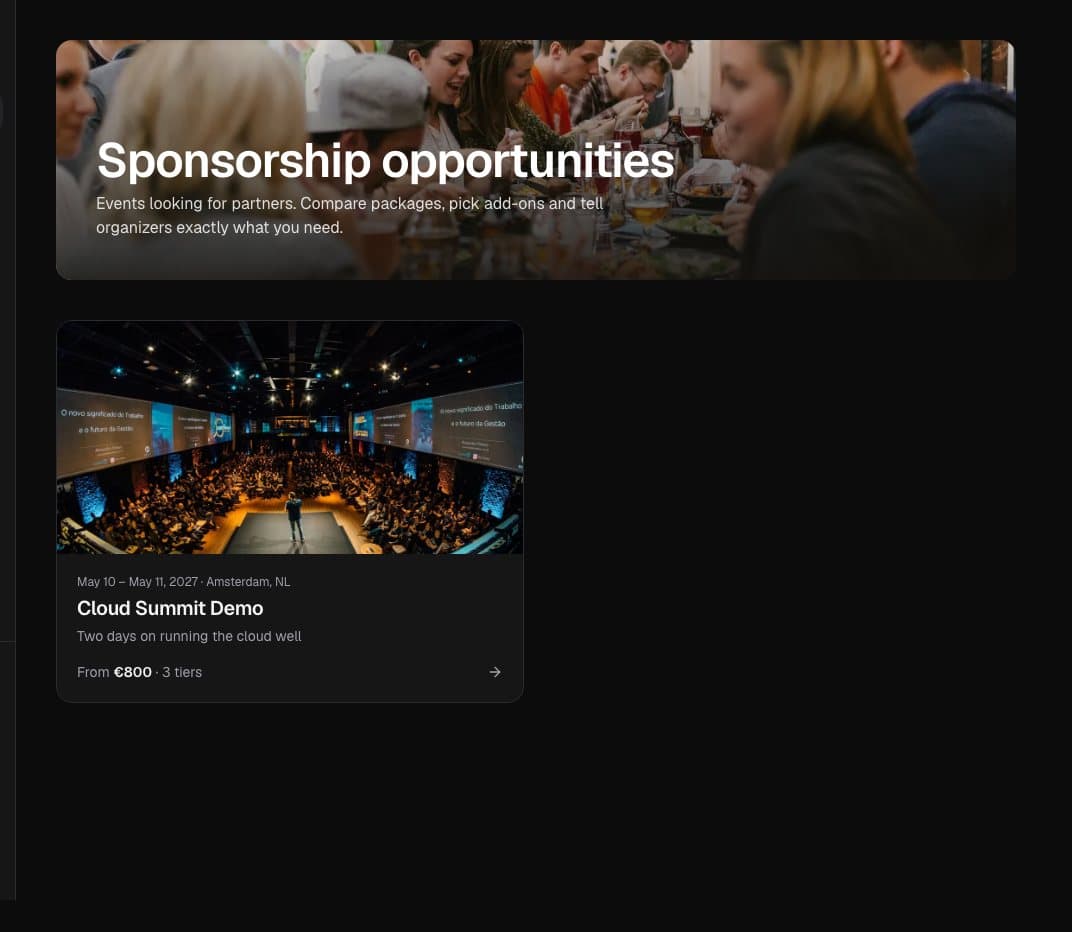
Find events to sponsor
Browse events with a published sponsor prospectus and compare their packages side by side.
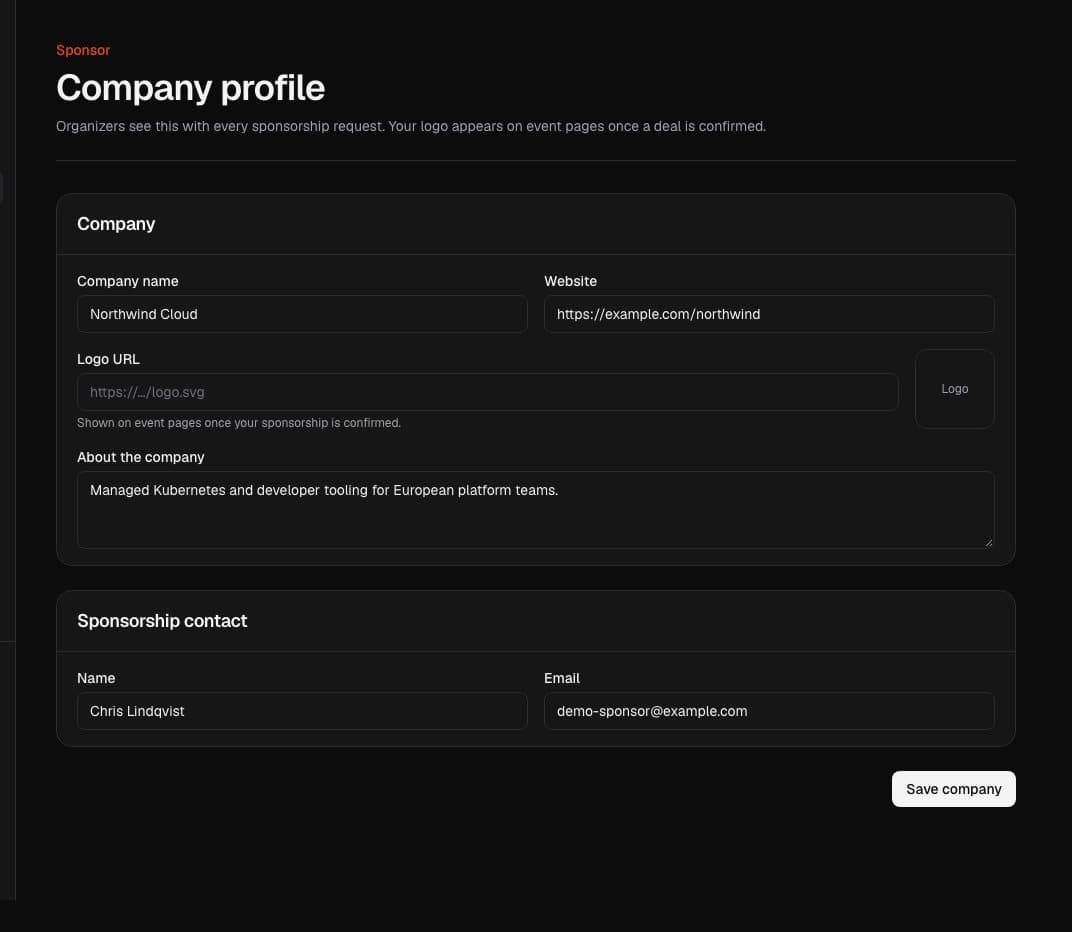
Switch between speaker, organizer and sponsor views at any time. Each view has its own menu.
Sign in your way
Use a one-time code, a password, or your GitHub, Google, LinkedIn or Microsoft account. New accounts confirm their email with a code, and repeated failed sign-ins are slowed down.
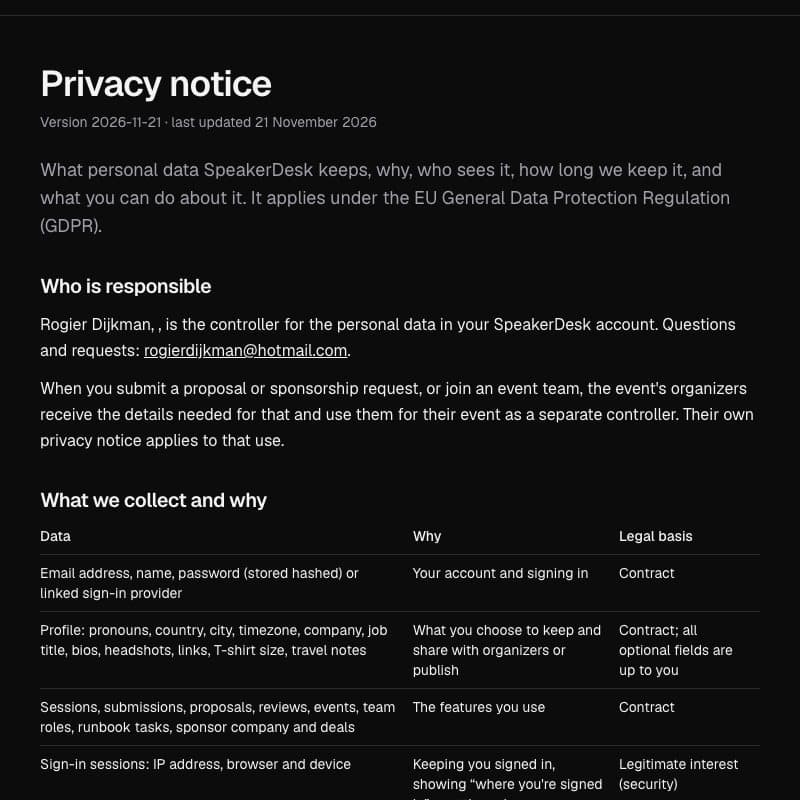
We only ask for what an event needs. You can export your data at any time and delete your account yourself, and important account activity is logged for 90 days.